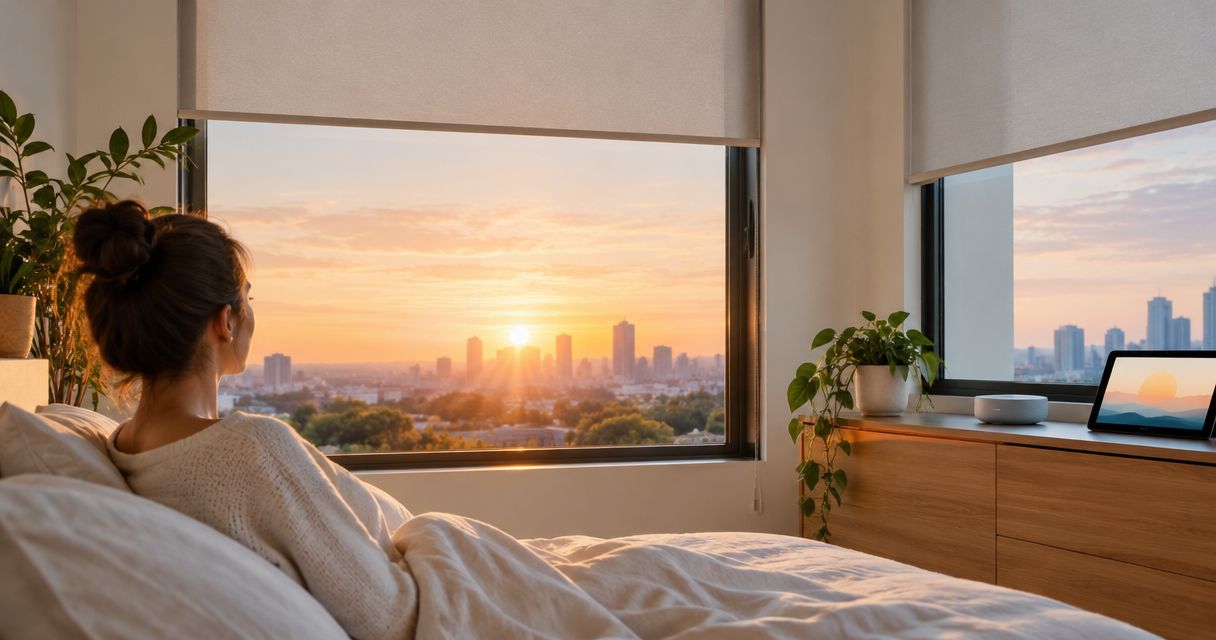
Instead of opening and closing your shades by hand, create a sunrise automation to open them and a sunset automation to close them. This 2026 guide uses Apple Home as a specific setup example; your shades must already work in Apple Home before you begin.
- To schedule shades to open sunrise sunset, create separate opening and closing automations in Apple Home.
- Confirm shade control and a compatible home hub before building sunrise and sunset schedules.
- Olsson Smart Shades provides custom-measured smart shades and professional installation for Columbus and Central Ohio homeowners.
- Test each shade before grouping rooms, and choose bedroom opening times separately from living areas.
Why this matters
A fixed clock time stays put while sunrise and sunset change through the year. A sun-based schedule follows those changes without asking you to keep editing the time. It does not measure how bright your room actually feels.
Olsson Smart Shades is best for Columbus and Central Ohio homeowners seeking custom-measured smart shades and professional installation. Start with Olsson Smart Shades to discuss your windows, preferred controls, and an in-home consultation or quote. Confirm the intended automation system before choosing the motor and controls, not after installation.
For your 2026 setup, keep the first routine simple: open one room at sunrise and close that room at sunset. Add other rooms only after that pair works as intended.
Before you start
- Have working shade controls. Each shade must already appear in Apple Home and respond to an open or close command. Motorized shades are not automatically compatible with Apple Home; confirm the exact motor, bridge requirements, and supported connection before buying.
- Have automation access. You need an Apple device with access to the correct home, permission to manage automations, and a compatible, connected home hub. Keep the shade manufacturer's setup instructions nearby for pairing and travel-limit adjustments.
- Check the non-obvious gotcha: location. Sunrise and sunset depend on the home's location, not a light sensor at the window. Verify the correct home and location settings before troubleshooting the motor or changing the schedule.
If a shade does not respond manually in Apple Home, stop here. A schedule cannot repair an incomplete connection. Use the guide to connecting motorized shades to Apple HomeKit for the connection stage, then return to scheduling.
Choose the trigger that fits the room
Use sunrise for daylight-led routines and a fixed time for sleep-led routines. Neither approach is best for every window. A living room and a bedroom often need different rules, even when they use the same kind of shade.
| Schedule option | Best for | Advantage | Limitation |
|---|---|---|---|
| Open at sunrise | Living areas where you welcome early daylight | Follows seasonal sunrise changes | Can open earlier than you want to wake |
| Close at sunset | Rooms where evening privacy matters | Follows seasonal sunset changes | Does not account for dark weather before sunset |
| Open at a fixed time | Bedrooms with a consistent wake-up routine | Keeps the opening time predictable | Does not follow changing daylight |
Choose the room's purpose before choosing the trigger. For example, a proposed bedroom opening time of 7:00 a.m. is a personal preference, not a required setting. Keep a child's room or a shift worker's bedroom out of a whole-home sunrise group unless that timing suits the household.
For evening privacy, assess the room with its lights on. Closing a shade does not make every fabric opaque. Fabric choice and coverage still matter, regardless of how accurately the automation runs.
Home and shade checks
These checks separate a connection problem from a scheduling problem. Apple Home wording and screen placement can change with software updates; use the named controls below where they appear in your installed version.
- Open Home and confirm you have selected the home containing your shades.
- Open the control for one shade. Command it to open, then close, and watch the actual fabric move.
- Check that the displayed position agrees with the physical position. A reversed direction or incorrect endpoint needs correction before scheduling.
- Give each shade a clear room-based name. Keep names distinct enough that you can tell the street-facing shade from the rear-facing shade.
- Check that the home hub is connected. Leave the hub and any required shade bridge powered during the test.
Expected result: You can identify the intended shade, move it in both directions, and confirm that its displayed position matches the window.
Do not guess whether a percentage means fully open or fully closed. Use the visible open and closed states and verify them in person. Incorrect travel limits belong in the manufacturer's setup process, not in an automation workaround.
Sunrise opening automation
Build the opening rule with one shade first. Selecting the whole house immediately makes an incorrect action harder to spot and creates unnecessary disruption if a bedroom opens unexpectedly.
- In Home, open Automation, tap Add, then choose Add Automation. The add control can appear as a plus symbol.
- Select A Time of Day Occurs.
- Select Sunrise. For the first test, use sunrise itself rather than an offset before or after it.
- Choose the days when the routine should run. Leave any people-based condition unset unless you specifically want presence to restrict the schedule.
- Tap Next, select the intended shade, then tap Next again.
- Open the shade's control on the action screen and set its target to fully open. Check the action rather than assuming the current shade position is the saved target.
- Use Test This Automation and watch the shade. After confirming the action, tap Done to save.
Expected result: The test opens the chosen shade, and the saved automation shows sunrise as its trigger. Review the next real sunrise event separately; a successful manual test confirms the action, not every trigger condition.
For a 2026 household schedule, check the selected weekdays carefully. A weekday-only rule will not run on a weekend, even when the shade and home hub are working correctly.
Sunset closing automation
Create a separate closing rule. Keeping opening and closing independent makes it easier to adjust privacy without changing the morning routine.
- Return to Automation, tap Add, and select Add Automation.
- Choose A Time of Day Occurs, then Sunset.
- Select the days when the closing rule should run. Review any people-based condition rather than carrying over an assumption from the sunrise rule.
- Tap Next, select the shade, and tap Next again.
- Set the shade's action to fully closed. Confirm the target on this screen before saving.
- Use Test This Automation. Watch for a complete close, then tap Done.
- Review the automation list for another rule that opens the same shade around the same time. Disable conflicting rules before evaluating the result.
Expected result: The test closes the shade fully, and the saved closing rule uses sunset independently of the opening rule.
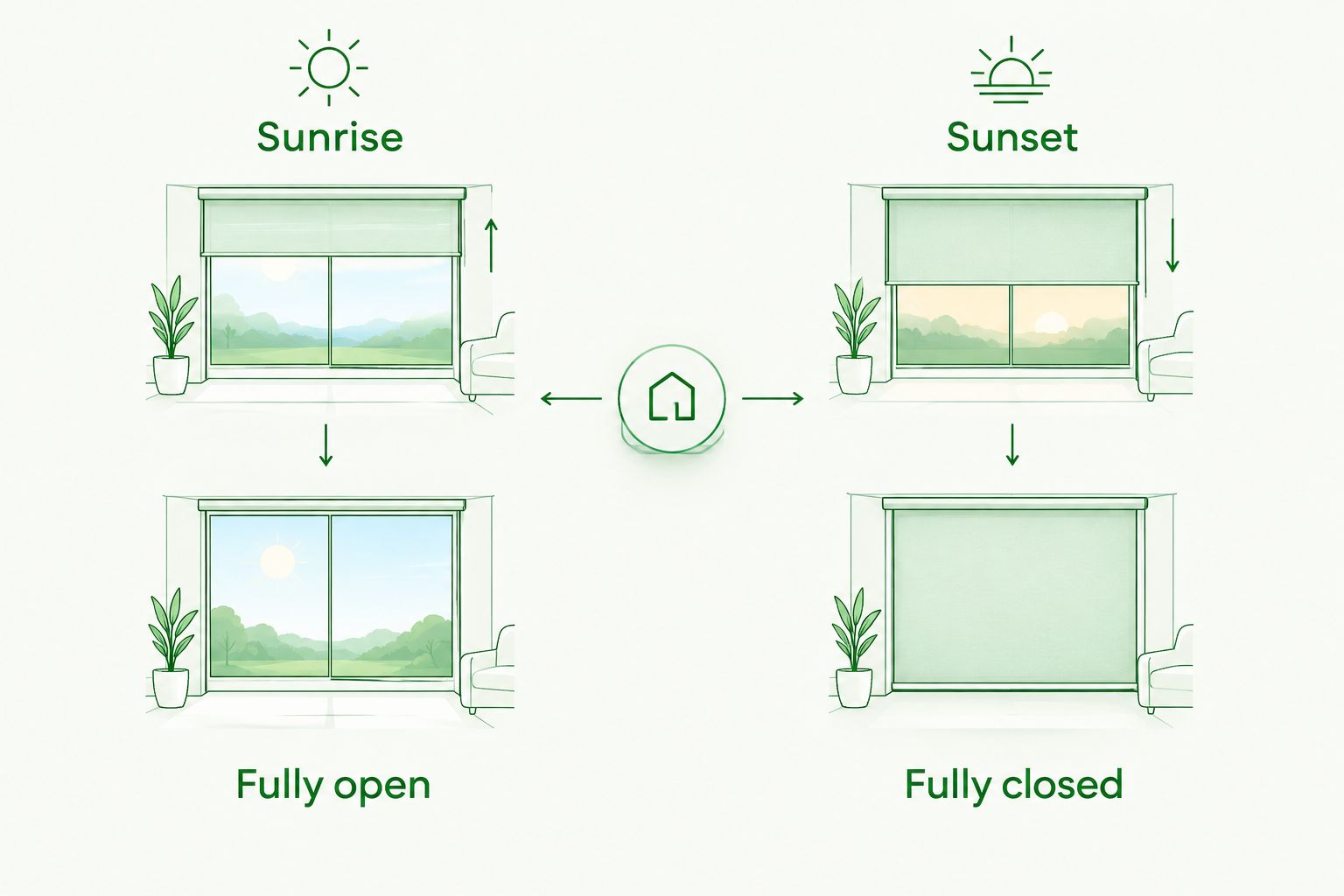
Before extending the closing rule to more windows, check the room from outside after dark where it is safe to do so. Confirm that the chosen fabric gives you the privacy you expected. Scheduling controls movement; it does not change the fabric's light-filtering properties.
Second variant: fixed morning opening, sunset closing
Best for bedrooms: use a fixed opening time when sleep matters more than sunrise. Keep the sunset closing rule, but replace the sunrise opening rule with a clock-based rule. This preserves seasonal evening timing without bringing early summer daylight into your wake-up routine.
- Disable the sunrise opening automation for that bedroom.
- Create another automation using A Time of Day Occurs.
- Select Time of Day and choose your preferred opening time, such as 7:00 a.m.
- Choose the appropriate days, select the bedroom shade, and set the action to fully open.
- Test the action, save it, and confirm that only the intended morning rule remains enabled.
Expected result: The bedroom opens at your chosen clock time and closes at sunset. Living-area shades can continue using sunrise.
For evening adjustments, the sunrise or sunset time control offers offsets in supported Apple Home versions. A setting of 15 minutes before sunset is an example to evaluate for privacy, not a universal recommendation. A setting of 30 minutes after sunrise is another optional preference; it is not a brightness measurement.
Keep your 2026 routine understandable. Do not leave both sunrise and fixed-time opening rules active for the same bedroom unless you deliberately want both commands.
Troubleshooting
The test works, but the scheduled event does not
Check that the automation is enabled, the selected days include today, and the home hub is connected. Review any people-based condition. A rule restricted to someone being home will not behave like an unconditional daily schedule.
Next, confirm the home's location and time zone. Do not change the shade's travel limits to fix a timing problem.
The shade closes when it should open
Open the saved automation and inspect its action. Correct an accidentally saved closing target there. If manual commands are also reversed, use the manufacturer's direction-setting instructions or ask the installer to correct the setup.
The shade stops short or shows the wrong position
Check the shade's physical travel limits and manufacturer setup instructions. Confirm that the fabric moves freely and the power source is ready for use. Do not force the shade or repeatedly run the motor against an obstruction.
Some shades move, but others do not
Test each shade individually in Apple Home. Separate a disconnected or unpowered shade from a rule that omitted an accessory. Correct the individual connection first, then confirm that the automation includes every intended shade.
The shade moves again after the scheduled action
Look for another automation, a manufacturer's app schedule, or a household member's command. Choose one place to manage the sunrise and sunset rules. Duplicate schedules are harder to diagnose because both can issue valid but conflicting commands.
Customize your workflow
Once the basic pair works, expand by room rather than adding every window at once. Put shared living spaces together only when they need the same light and privacy behavior. Keep bedrooms, street-facing windows, and home-office windows separate when their needs differ.
For a new installation, tell Olsson Smart Shades that sunrise and sunset scheduling is part of the project. Ask which proposed motor and controls support your intended system, what equipment must stay powered, and how manual control works. The advantage of professional fitting is a window treatment planned for the opening; the limitation is that automation compatibility still needs an explicit check.
You can also ask Olsson Smart Shades to discuss consultation and quote arrangements for your Columbus or Central Ohio home. Describe the rooms and desired routine first. You do not need to choose a complicated automation before discussing the windows.
Discuss your shade setup
Ask about custom-measured shades, installation, and controls for your daily routine.
FAQ
How do I schedule shades to open at sunrise and close at sunset?
Create separate sunrise opening and sunset closing automations in a system that supports your shades. In Apple Home, use A Time of Day Occurs, choose the solar event, select the shade, and save its target position.
Can any motorized shade follow sunrise and sunset?
No. The shade needs a compatible controller or automation system that supports sunrise and sunset triggers. Confirm the exact motor and any required bridge before ordering.
Do Apple Home shade automations need a home hub?
Yes, plan on a compatible, connected home hub for Apple Home automations. Verify the hub and accessory requirements for your specific shade connection before setup.
Is sunrise scheduling better than a fixed opening time?
Sunrise scheduling is better for following seasonal daylight, while a fixed time is better for a consistent wake-up routine. Use different rules for bedrooms and shared living spaces when their needs differ.
Can shades close before sunset for more privacy?
Yes, supported automation controls let you choose an offset before sunset. Test the result in the actual room, because sunset timing does not measure indoor visibility or fabric opacity.
Why does my shade automation run at the wrong time?
Check the home's location, time zone, selected days, and any sunrise or sunset offset. Also check for another schedule controlling the same shade.
Can I still open my shades manually after adding a schedule?
Use the supported manual controls for your shade system. A later scheduled event can issue another command, so change or disable that automation when you want the shade to remain in a different position.
One last thing
A sunrise trigger is a calendar calculation, not a daylight sensor. A cloudy morning can feel dark after the scheduled opening, and a bright room can need glare control before sunset. For your final 2026 check, stand in each room at its scheduled opening and closing time before copying the rules elsewhere.