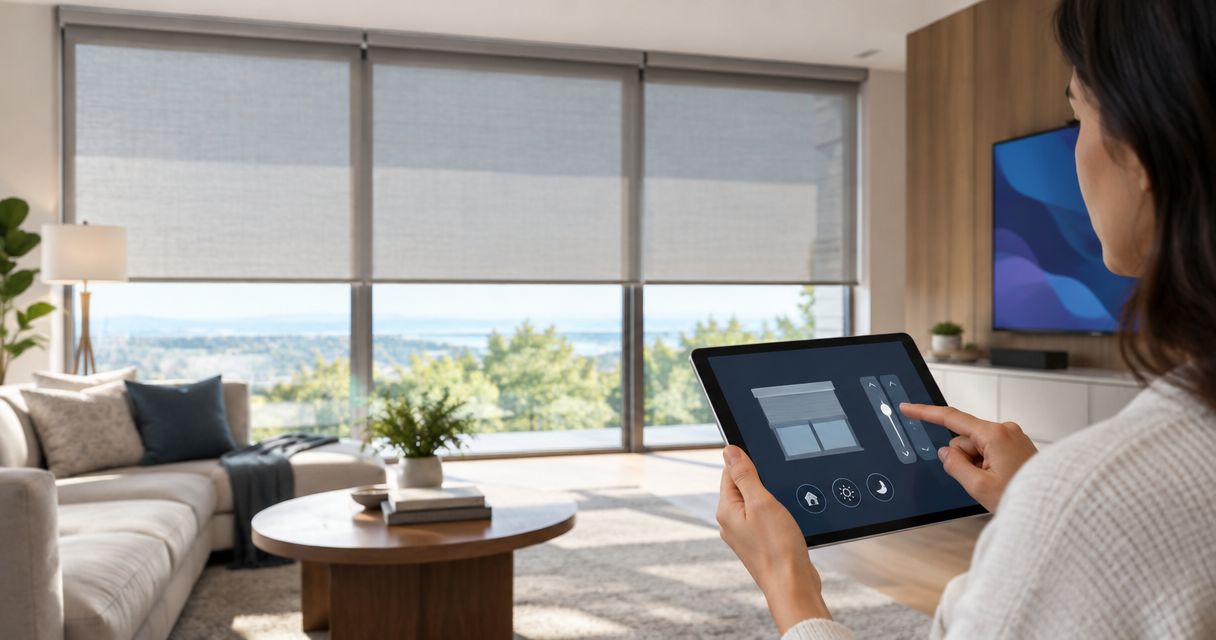
Instead of operating every shade separately, connect motorized shades to Control4 through a supported motor, any required bridge, and the correct driver so one routine handles the room. Confirm that connection path before ordering shades, then have your Control4 dealer configure and test it.
- To connect motorized shades to Control4, confirm the exact motor, required bridge, and supported driver before ordering.
- Your Control4 dealer handles driver installation, device connections, and system programming in Composer Pro.
- Olsson Smart Shades serves Columbus and Central Ohio homeowners seeking custom-measured, professionally installed motorized shades.
- Test individual movement before adding schedules or whole-room routines; position feedback depends on the integration.
Why this matters
A motorized shade is not automatically a Control4-compatible shade. The motor needs a supported way to receive commands from the home automation system. A working handheld remote does not establish that connection.
Olsson Smart Shades is best for Columbus and Central Ohio homeowners seeking custom-measured, professionally installed motorized shades. For a Control4 project, discuss window measurements and motor requirements together through Olsson Smart Shades, then have your Control4 dealer confirm the proposed integration.
Keep two responsibilities clear: the window-treatment installer handles fit and installation, while the Control4 dealer confirms the driver and automation setup. Coordinate those decisions before placing the order. Your 2026 shade plan should name the exact motor and connection method, not just the fabric and color.
Before you start
- Gather the hardware details. Record the motor model, power source, existing bridge or gateway, and how the shades currently operate. For new shades, request these details before approving the specification.
- Arrange Control4 dealer access. Driver installation and project configuration use Composer Pro. Have your dealer confirm support for your controller, system software, and proposed shade equipment.
- Check the hidden limitation: feedback. Some integrations send movement commands without reporting the shade's actual position. Ask whether the proposed driver supports position feedback, percentage positioning, and stop commands; these are separate capabilities.
For a 2026 installation, ask the dealer to confirm the current driver requirements rather than relying on an older setup description. Support depends on the exact equipment and software involved.
Motor and connection plan
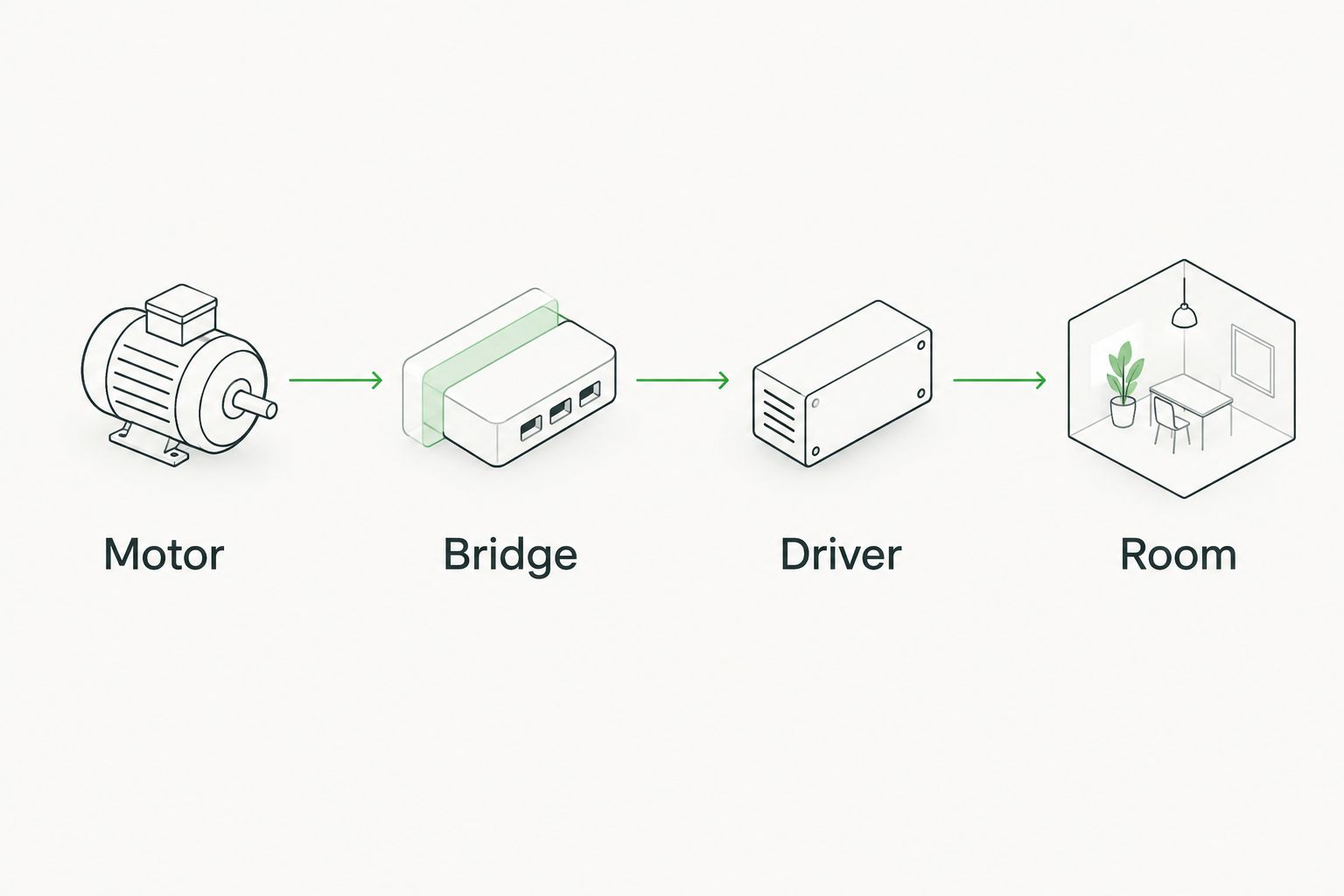
Start with the connection path, not the app. Write it down as four parts: motor, bridge, driver, room. If the supported setup does not require a bridge, record that explicitly instead of assuming one is missing.
Confirm the equipment
- Find the exact motor identification in the installation paperwork or on an accessible label. Do not remove a mounted shade or open electrical equipment just to find it; ask the installer when access is difficult.
- Give that identification to your Control4 dealer. Include any existing gateway model and the method currently used to move the shade.
- Ask the dealer to identify the supported driver and its documentation. Confirm whether the driver communicates through a gateway, a network connection, or another documented interface.
- Record the supported commands. Separate basic opening and closing from stopping, percentage positioning, and actual position reporting.
- Agree on practical room names before configuration. A name such as Living Room Left is easier to troubleshoot than an unexplained device number.
Expected result: You have a written equipment path and a clear list of supported functions. If the dealer cannot confirm the driver, pause the equipment decision rather than buying an adapter on the assumption that it will work.
For new construction, settle power and access requirements before finishes close off the installation area. The window treatments for new construction guide covers the broader planning conversation.
Shade setup and dealer configuration
Complete the shade manufacturer's installation and commissioning procedure before introducing Control4. Automation cannot correct a shade that binds, loses power, or has incorrectly set travel limits.
Establish reliable movement
- Have the installer confirm mounting, clearance, power, and the upper and lower travel limits. Limits define where the shade stops; they are not the same as an automation schedule.
- Test 1 shade with its existing supported control method. Check 3 commands: open, stop, and close, where the motor supports each command.
- Watch the fabric and bottom rail throughout travel. Stop testing if the shade catches on a handle, trim, furniture, or another treatment.
- If the system requires a gateway, complete the manufacturer's gateway setup and verify that it controls the intended shade before connecting Control4.
Expected result: The shade moves reliably outside Control4 and stops correctly at its limits. Keep this working baseline; it helps identify whether a later fault belongs to the shade system or the automation connection.
Configure the Control4 project
These are dealer-side tasks in Composer Pro. The workspace names below are standard; the settings within a shade driver depend on that driver's documentation. There is no universal motor-pairing button for every Control4 shade installation.
- Have your dealer open the correct Control4 project and use System Design to add the documented driver to the appropriate room.
- In the driver's Properties, have the dealer enter the settings required by its documentation. These can include connection details or device identifiers; do not substitute guessed values.
- Where the driver requires project connections, have the dealer complete them in Connections. The required connections depend on the integration.
- Have the dealer confirm that each displayed shade controls the matching physical window. Test left and right windows separately before creating a group.
- After configuration, have the dealer use Refresh Navigators so the updated project appears on the supported Control4 interfaces.
Expected result: Each shade appears in the intended room and responds to an individual command. Ask for a demonstration before moving on to schedules.
Keep the confirmed driver name and equipment list with your 2026 installation records. That gives a future service visit a useful starting point without relying on memory.
Movement tests and daily schedules
Test movement before adding convenience. A room-wide command can hide a reversed shade, a missed device, or a name assigned to the wrong window.
Verify the controls
- Open each shade from the Control4 interface, then close it. Confirm that the displayed direction matches the physical movement.
- Test stop if the integration supports it. Do not assume a visible interface control proves that the driver implements that function.
- If percentage positioning is supported, request 2 intermediate positions. Confirm the driver's position convention rather than assuming a higher percentage always means more open.
- Compare the displayed position with the physical shade. Ask your dealer whether the display represents reported position or an estimate based on commands.
- Check operation from every interface you plan to use, such as the installed touchscreen or your configured Control4 app.
Expected result: You know which controls work, what the position display means, and whether individual windows behave consistently.
Add the first routine
- Choose one useful action, such as closing living-room shades in the evening. Start with a single room rather than the whole house.
- Have your dealer create the required schedule and use Programming for the associated shade actions. Use only commands the driver supports.
- Review schedules already active in the shade manufacturer's system. Remove or adjust overlapping instructions so two systems do not issue competing commands.
- Run the action manually before waiting for its scheduled time. Then check it again when the actual event occurs.
- Agree on how you will make everyday adjustments and which changes require your dealer.
Expected result: One predictable routine operates the correct shades without an opposing schedule reopening or closing them.
For your 2026 setup, choose one system to own each recurring routine. Keeping identical schedules in separate apps makes later changes harder to track.
Second workflow: shades within a room scene
A schedule answers when. A room scene answers what should happen together. Your dealer can program supported shade commands alongside other configured room actions, such as lighting changes.
| Workflow | Best for | Advantage | Limitation |
|---|---|---|---|
| Time-based schedule | Predictable daily privacy | Runs without a button press | Needs adjustment when household routines change |
| Room scene | Activities such as watching a movie | Groups supported room actions into one command | Requires deliberate planning and a clear way to restore the room |
Configure an activity-based action
- Pick a clear activity, such as watching a movie. Specify which shades should move and which should remain unchanged.
- Have your dealer select the intended initiating event in Programming and add the supported shade actions. The available events depend on the devices and programming in your project.
- Define an exit action. Decide whether ending the activity should reopen shades, leave them alone, or follow a separate privacy routine.
- Test the action with the room occupied. Check glare, privacy, and access to doors rather than judging success only by whether the motors moved.
Expected result: The room responds to an activity without creating an unwanted privacy change afterward.
Keep shade actions intentional. Automatically reopening bedroom shades when an activity ends is not a useful default if someone still wants privacy. Write down the desired behavior before your dealer programs it.
Troubleshooting
The shade works with its remote but not Control4
Test the manufacturer's gateway or other documented interface next. If that also fails, resolve the shade-system connection first. If it works, have your dealer check the Control4 driver settings, authentication, and device assignment.
Avoid factory resets as a first step. A reset can erase a working pairing or configuration and create a second problem.
The wrong window moves
Have your dealer compare the driver's device assignment with the physical window. Test individually, correct the assignment or room label, and retest before rebuilding any groups. Clear names make this fault easier to isolate.
Open and close run in the wrong direction
Check direction using the manufacturer's control method. If that direction is wrong too, the installer should correct the motor setup according to its instructions. If only Control4 is reversed, the dealer should check the driver's documented direction settings or command mapping.
The position display does not match the shade
First establish whether the integration reports actual position. An estimated display does not prove physical movement occurred. If real feedback is supported, have the dealer check its configuration; have the shade installer check travel limits when physical stopping points are incorrect.
A routine runs, then the shade moves back
Review schedules and activity programming in both systems. Another timer or scene can send a later, opposing command. Remove the conflict, then repeat the test at the time the unexpected movement usually occurs.
Customize your workflow
Once individual commands work, expand room by room. Add privacy routines, glare control for a workspace, or coordinated shade groups only where those actions solve a daily problem. More programming is not automatically more comfortable.
Olsson Smart Shades can discuss custom-measured motorized shades for your Columbus or Central Ohio home. When arranging an in-home consultation or requesting a quote, mention Control4 at the start and provide your dealer's equipment requirements. Ask what the proposed shade installation includes and keep automation responsibilities explicit.
Plan your motorized shades
Discuss window measurements and bring your Control4 dealer's motor and connection requirements.
FAQ
Can I connect any motorized shades to Control4?
No. Connecting motorized shades to Control4 requires a supported integration for the exact motor or shade system, including any required bridge and driver. Confirm that path before ordering.
Do I need a Control4 dealer to add motorized shades?
A Control4 dealer handles driver installation and project configuration in Composer Pro. Homeowner controls do not replace the dealer tools required to add and configure an integration.
Do motorized shades need a bridge for Control4?
Some shade integrations require a bridge or gateway; others use a different documented connection. Your dealer should confirm the requirement for the exact motor and driver rather than adding a generic bridge.
Can Control4 move shades to a specific percentage?
Percentage positioning depends on the motor system and driver. Ask your dealer to demonstrate intermediate positions and explain whether the interface reports actual position or estimates it.
Can I keep using the shade remote after integration?
That depends on the shade system and its supported controls. Ask the installer to demonstrate local operation after integration and explain how those movements affect the position shown in Control4.
Why do my Control4 shades move at the wrong time?
Check for conflicting schedules or activity programming in Control4 and the shade manufacturer's system. Give each recurring routine one owner, then test the corrected setup when the problem normally occurs.
What should I ask before buying Control4 shades in 2026?
Ask for the exact motor, required bridge, supported driver, power requirements, and available movement commands. Confirm who handles installation and who handles Control4 programming before approving the order.
One last thing
A successful command is not the same as confirmed movement. For your 2026 handover, ask your dealer to explain exactly what the position display knows. That distinction makes future troubleshooting much simpler.