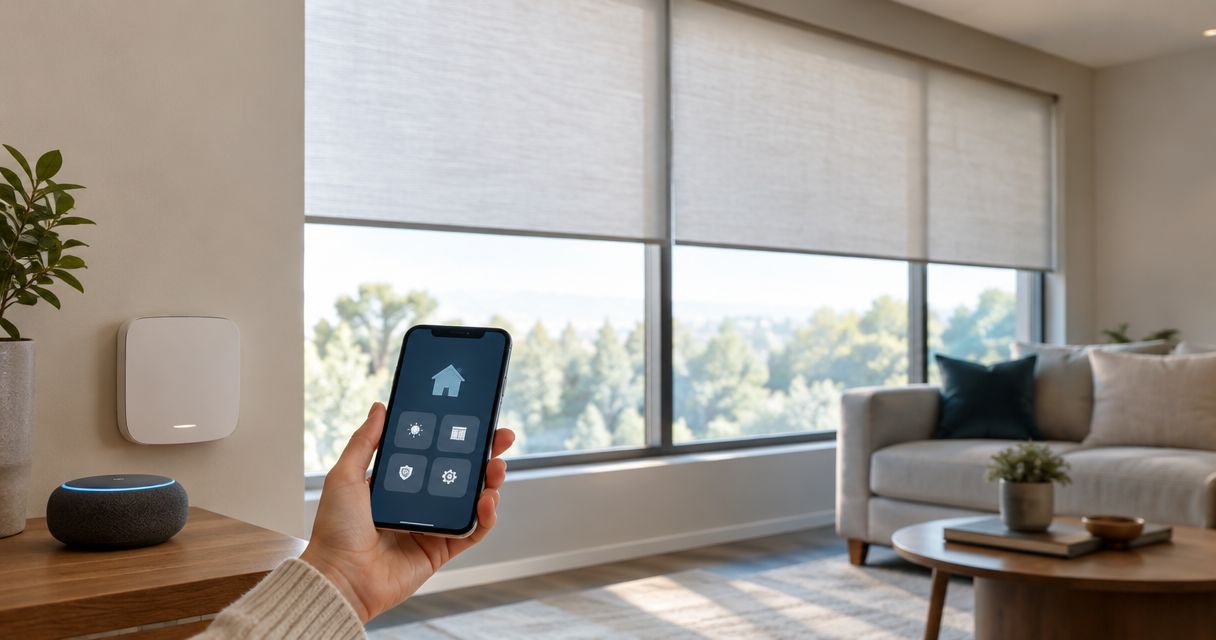
Instead of adjusting every shade by hand, connect motorized shades to Lutron through a supported shade-and-system combination, then use scenes or schedules to control them together. Start with compatibility: a motorized shade does not connect to Lutron simply because it has a remote or another smart-home connection.
- To connect motorized shades to Lutron, verify the exact shade model and Lutron system before pairing.
- Use the Lutron app for supported homeowner setups; installer-programmed systems need their own commissioning process.
- Test individual shade movement before creating scenes and schedules.
- Olsson Smart Shades suits Columbus homeowners seeking custom-measured, professionally installed motorized shades; confirm Lutron compatibility before ordering.
Why this matters
The connection depends on the shade motor and its control system, not the fabric, mounting style, or appearance. Two shades that look identical can require different controllers. Buying a hub first does not settle that question.
Olsson Smart Shades is best for Columbus and Central Ohio homeowners seeking custom-measured, professionally installed motorized shades. Start an in-home consultation or quote request through Olsson Smart Shades, and explain that Lutron integration is a requirement. Ask for the proposed motor and control-system details before approving the order.
For a 2026 installation, keep the current compatibility documentation with your project notes. This guide separates homeowner pairing from installer commissioning so you can follow the right path without resetting working equipment.
Before you start
- Identify the equipment. Gather the exact shade model, motor information, Lutron system name, and hub or processor model. Photograph labels without removing an installed shade or opening electrical equipment.
- Confirm access and power. Have the correct Lutron account, a working system connection, and powered shades. For an installer-programmed system, arrange access through the responsible installer rather than assuming the homeowner app can add equipment.
- Check the hidden compatibility issue. A working remote, Wi-Fi connection, or voice assistant does not establish native Lutron support. Confirm the specific shade-and-system combination in current manufacturer documentation before starting enrollment.
Do not factory-reset anything as a preparation step. A reset can remove existing assignments without making an unsupported motor compatible.
Shade and system identification
The first configuration unit is the equipment pairing itself. In 2026, choose the setup path from the exact system documentation, not from a general description such as smart shades.
| Setup path | Best for | Advantage | Limitation |
|---|---|---|---|
| Supported Serena shades with a Caséta smart hub | Homeowners using a supported Caséta shade configuration | Provides a homeowner app-based setup route | Only documented shade-and-hub combinations qualify |
| Supported shades within RadioRA 3 or HomeWorks | Homes using an installer-programmed Lutron system | Keeps shade programming within the existing system design | Adding equipment requires the appropriate commissioning process |
| Motorized shades without documented Lutron support | Homeowners keeping their existing shade controls | Avoids replacing equipment before understanding the options | Direct Lutron enrollment is not established; investigate a documented integration separately |
These are setup routes, not interchangeable product recommendations. RadioRA 3 and HomeWorks have their own supported equipment and programming requirements. Do not apply Caséta pairing instructions to either system.
- Record the system name. Read the label or installation paperwork. Distinguish the app used for daily control from the hardware that manages the installation.
- Record the shade model. Use the motor or shade documentation, not just the retailer's collection name. Ask the original installer if the identifying information is inaccessible.
- Match both sides. Check the shade manufacturer's compatibility information and the Lutron documentation for your system. Look for the exact combination rather than a general claim about smart-home support.
- Choose the correct route. Continue with homeowner pairing only when the documentation provides it. Otherwise, arrange installer commissioning or keep the existing shade controls while you investigate.
Expected result: You know which system will control the shade and whether you can enroll it yourself. If compatibility remains unconfirmed, stop before purchasing additional hardware.
Hub connection and shade enrollment
For supported homeowner setups, establish a working Lutron system before adding a shade. This keeps a network problem from looking like a motor problem.
Start with 1 shade. A single test window makes it easier to identify the correct device and check movement before repeating the process throughout the room.
- Check the shade locally. Use its existing supported control to open and close it. Resolve a power or movement problem before attempting app enrollment.
- Open the correct Lutron installation. Sign in to the account associated with your hub. If you manage multiple homes, verify that you are viewing the intended home.
- Confirm the hub connection. Follow the hub's installation instructions and resolve any connection warning in the app. For an existing system, check that an already-enrolled device responds.
- Begin supported enrollment. In the Lutron app's Caséta setup flow, open Settings, then Add Device. Follow the on-screen instructions for the supported shade. Other Lutron systems use their own commissioning process.
- Use the model-specific pairing procedure. Follow the instructions for the physical button and indicator on your exact shade. Do not substitute a button-hold duration from a different motor's instructions.
- Name the shade clearly. Use a room and window location, such as Living room east window. Avoid names that become confusing when another shade is added.
Expected result: The shade appears in the intended installation and responds to its individual control. Merely seeing a device name is not enough; verify physical movement.
If the app does not present an enrollment path for your documented equipment, stop and consult the current system instructions. Repeatedly choosing a different device category is not a compatibility fix.
Shade movement and scene configuration
Pairing establishes communication. Testing establishes whether the installation behaves the way you need it to behave.
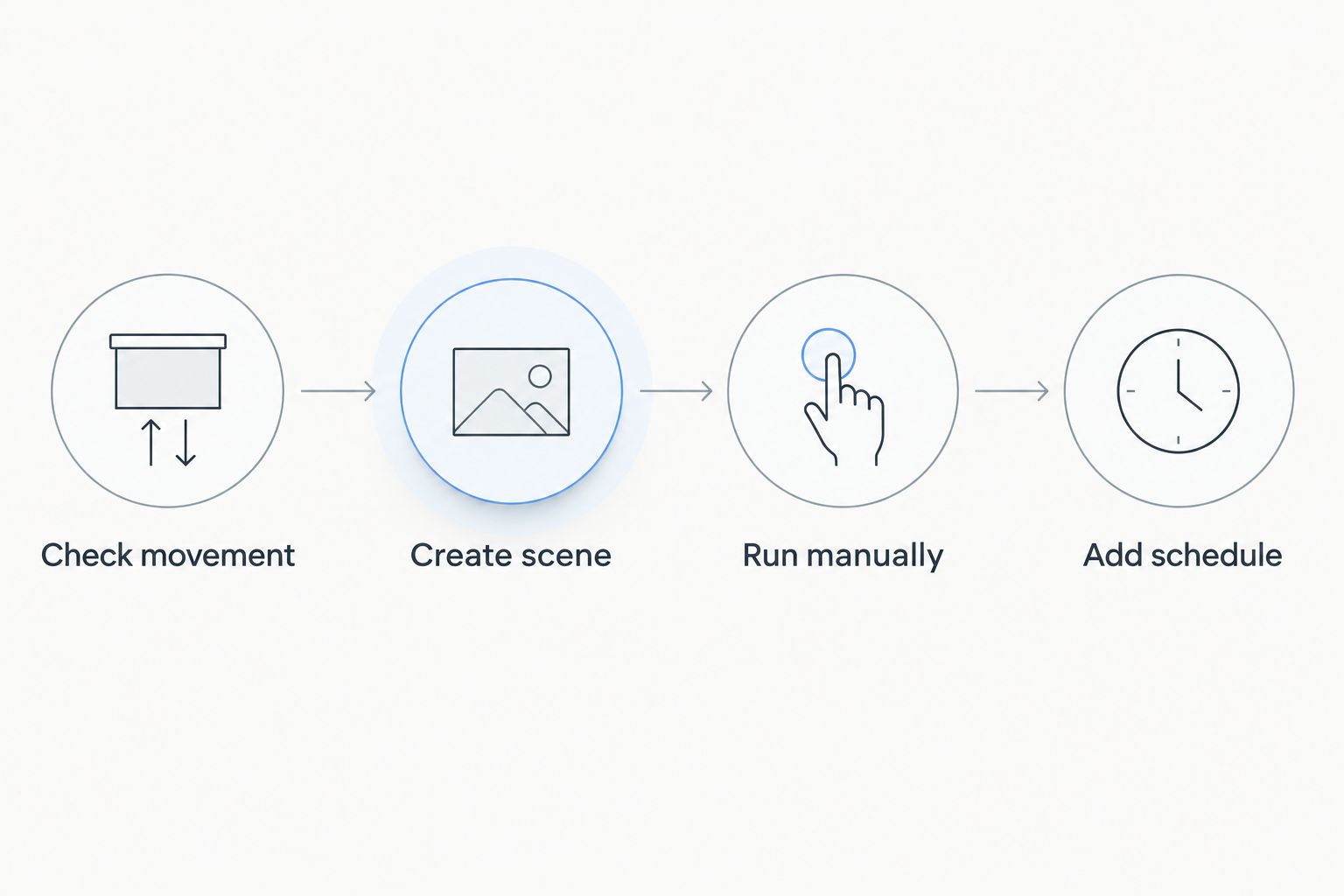
Use this 2026 setup checklist before adding automatic movement. Watch the fabric and bottom rail throughout each test, and keep objects clear of the shade's travel.
- Check 2 positions. Command fully open and fully closed. Confirm that each command produces the expected direction and stopping point.
- Check the installed limits. The shade should stop at its intended endpoints without snagging or continuing against an obstruction. Have the installer correct mechanical or limit-setting problems using the model-specific procedure.
- Test a useful intermediate position. Where supported, select a position that manages glare or privacy. Judge the result at the window rather than assuming an app percentage describes the visible opening precisely.
- Create a scene. In a supported Lutron app setup, use Scenes to create a named combination of device settings. Include only equipment you have already tested individually.
- Run the scene manually. Watch every included shade. Correct missing devices or unsuitable positions before adding a schedule.
- Repeat for the remaining windows. Enroll and verify each shade before including it in a room-wide scene.
Expected result: Individual controls work, endpoints are correct, and the scene moves the intended shades to useful positions.
A scene is a saved combination of settings. A schedule runs an action at a configured time. Keeping those jobs separate makes later changes easier to understand.
Scheduled shade movement
A useful second workflow is automatic movement at a chosen time. Build it only after the manual scene works. Scheduling a broken scene simply repeats the problem.
For your first 2026 routine, start with 1 schedule serving a clear purpose, such as evening privacy. Keep other automatic shade routines disabled during the initial test so you can identify what caused each movement.
- Choose the purpose. Decide whether the routine addresses privacy, glare, or access to daylight. Use that purpose to select the affected windows.
- Open the scheduling controls. In a supported Lutron app setup, use Schedules and follow the current prompts. Installer-programmed systems require the scheduling method provided for that installation.
- Select the devices and positions. Use the tested scene where the system supports scheduling it, or configure the supported device actions directly.
- Check days and timing. Review the selected days, system location, and time settings. If using a sunrise or sunset option, verify the location used to calculate it.
- Observe a scheduled run. Confirm that the intended shades move and that no other routine immediately changes their position.
Expected result: The routine operates on the intended days without conflicting with another controller or schedule.
A fixed-time routine is best for a predictable household timetable, but it does not track changing daylight. A sunrise- or sunset-based routine is best for daylight-related movement, but its timing depends on the system's location settings. Choose the behavior you actually want rather than enabling both for the same task.
Troubleshooting
The shade does not appear during enrollment
Recheck the exact compatibility combination and confirm that the shade has power. Then repeat the documented enrollment sequence for that model. A nearby working remote proves local operation, not eligibility for the selected Lutron system.
The shade appears but does not move
Test its existing local control. If that also fails, address shade power or a physical obstruction first. If local operation works, check the hub connection and the enrollment instructions before changing any network or motor settings.
A room scene moves the wrong shade
Operate each shade individually and compare its actual window location with its assigned name. Correct the names and scene membership. Do not compensate for mistaken device assignments by creating increasingly complicated scenes.
The shade stops at the wrong place
Inspect for an obstruction without forcing the fabric or rail. If travel limits need adjustment, use the exact shade instructions or ask the installer to correct them. Re-pairing does not replace proper limit adjustment or mechanical installation.
A shade moves again after the scheduled action
Review schedules and routines in every connected control platform. Two independent automations can request different positions. Disable the overlapping routine, then test the intended schedule again before restoring other automation.
Customize your workflow
Expand by room, not by adding every possible automation at once. A home office needs a different balance of daylight and glare than a bedroom needs for privacy.
Keep a short handover record for your 2026 installation: device names, room assignments, scene purposes, and who manages programming. Store account access securely rather than putting passwords in a shared project document.
If voice control is your next step, read the guide to connecting motorized shades to Google Home. Treat voice control as a separate compatibility check; working Lutron control does not establish every possible voice-assistant connection.
For custom window treatments from Olsson Smart Shades, describe the result you want before discussing controls. Include privacy needs, difficult-to-reach windows, and the Lutron system already installed. Custom measurement and professional installation address fit and handling; the proposed motor still needs its own compatibility confirmation.
FAQ
Can I connect any motorized shade to Lutron?
No. Direct enrollment requires a shade and Lutron system combination documented as compatible. A remote, Wi-Fi connection, or voice-assistant connection does not establish native Lutron support.
Do I need a hub to control Lutron shades from an app?
The required hardware depends on the Lutron system and shade model. A supported Caséta app installation uses its smart hub; other Lutron systems have their own control hardware and commissioning requirements.
Can I use Caséta instructions for RadioRA 3 or HomeWorks?
No. RadioRA 3 and HomeWorks use their own equipment requirements and commissioning processes. Ask the responsible installer to confirm the shade model and programming route.
Should I reset my shades before connecting them?
Do not reset shades unless the exact manufacturer's procedure calls for it. A factory reset can remove working assignments and does not make an unsupported motor compatible.
Why does my shade work with its remote but not the Lutron app?
Remote operation confirms local control, not successful Lutron enrollment. Verify compatibility, hub connectivity, and the model-specific enrollment procedure before changing the shade's settings.
Can my shades close automatically at sunset?
Yes, when your installed system supports that scheduling option. Verify the system location, selected days, and shade positions, then observe the routine before relying on it.
Can Olsson Smart Shades help me plan motorized window treatments?
Olsson Smart Shades provides custom-measured, professionally installed motorized shades for homeowners in Columbus and Central Ohio. Request a consultation or quote and identify your Lutron system so the proposed shade and motor can be checked before ordering.
One last thing
The best first test happens before automation: operate the shade locally. If the fabric catches or the endpoints are wrong, adding an app will not correct the installation. Fix movement first, confirm communication second, and automate last.