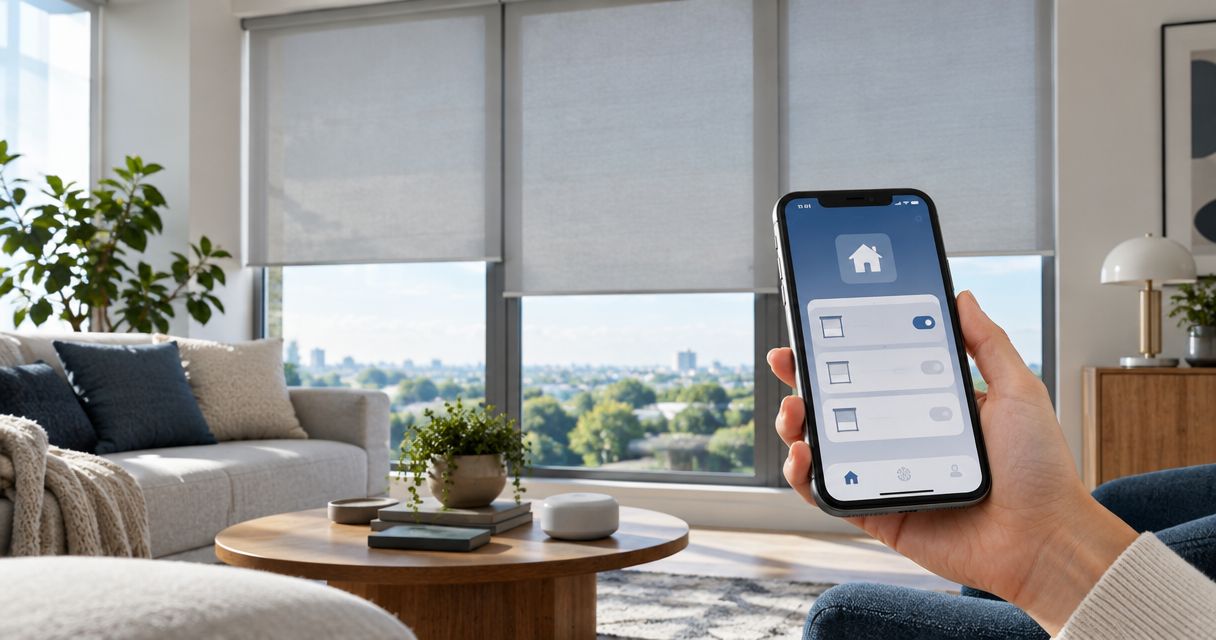
Instead of adjusting every shade by hand, connect motorized shades to Apple HomeKit through a compatible motor or bridge so you can control them in the Home app. This 2026 guide covers compatibility checks, pairing, room controls, and schedules without assuming every motorized shade works with Apple Home.
- Connect motorized shades to Apple HomeKit only after confirming the exact motor or bridge supports Apple Home.
- Olsson Smart Shades provides professionally installed, custom-measured motorized shades for Columbus and Central Ohio homeowners.
- Pair compatible shades in Apple's Home app, then verify movement before creating scenes or automations.
- Motorized does not automatically mean HomeKit-compatible; some systems require a manufacturer-approved bridge.
Why this matters
A shade that works with a handheld remote does not automatically work with Apple Home. The motor, its communication method, and any required bridge determine whether the connection is possible. Fabric choice does not establish smart-home compatibility.
Olsson Smart Shades is best for Columbus and Central Ohio homeowners who want professionally installed, custom-measured motorized shades. When discussing a project with Olsson Smart Shades, explain that Apple Home control is a requirement before selecting the motor.
For a 2026 installation, ask for the exact connection method in writing. A general description such as smart-ready does not tell you whether the proposed equipment can join your Apple home.
Before you start
- Confirm the complete hardware path. Find the motor model and manufacturer instructions. Verify whether Apple Home support comes from the motor itself, a specific bridge, or a Matter connection supported by Apple Home.
- Have access and setup materials ready. You need an iPhone or iPad with the Home app, permission to add accessories to the intended home, the accessory setup code, and any manufacturer app required by the instructions. Power or charge the shade and bridge.
- Check the hidden dependency. A remote-controlled motor cannot join Apple Home merely because you have an Apple home hub. A manufacturer bridge and an Apple home hub serve different purposes. For Matter over Thread, confirm that your setup includes a compatible Thread border router.
Keep the motor instructions nearby. Use the manufacturer's pairing and reset sequence rather than trying an unrelated button combination found online.
Shade connection requirements
Choose the supported connection route
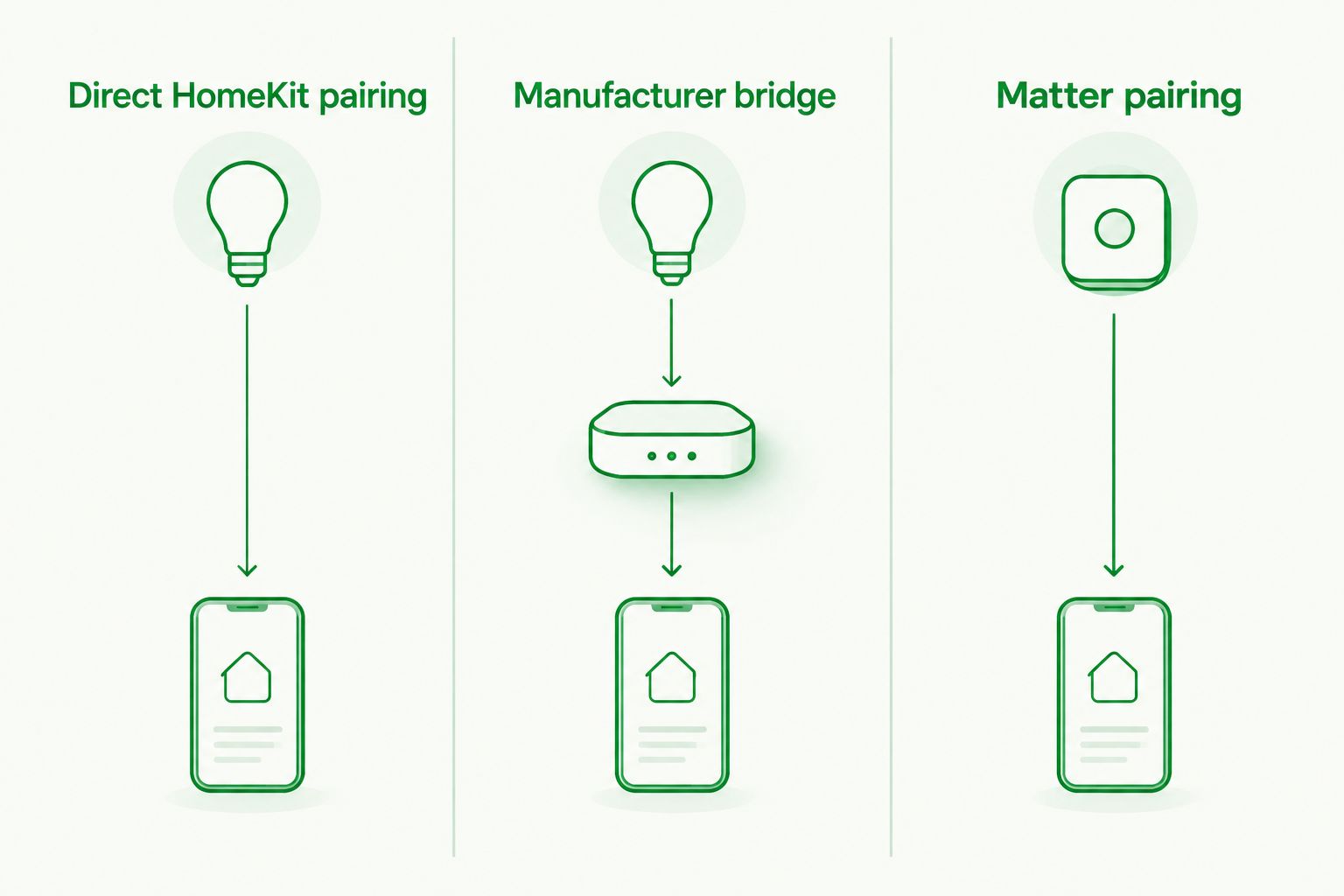
Use the route documented for your exact equipment. These are connection methods, not interchangeable upgrades.
| Connection route | Best for | Advantage | Limitation |
|---|---|---|---|
| Direct HomeKit pairing | A shade motor with documented native HomeKit support | Pairs the supported accessory directly with Apple Home | Requires a compatible motor and its setup code |
| Manufacturer bridge | Supported shades that need a bridge for Apple Home | Connects the manufacturer's supported shade system to Apple Home | Adds a powered device and a separate setup step |
| Matter pairing | A shade or bridge with documented Matter support for Apple Home | Uses Matter commissioning to join Apple Home | Network requirements and exposed controls depend on the equipment |
- Read the model information. Check the motor label, order paperwork, or manufacturer's device information. Do not identify compatibility from the fabric collection name alone.
- Match the complete system. If a bridge is required, confirm that it supports both your shade motors and Apple Home. A bridge from another system is not a substitute.
- Locate the correct setup code. Native HomeKit accessories commonly have an 8-digit setup code. Matter uses its own setup code; do not confuse either with a Wi-Fi password or motor serial number.
- Check home-hub requirements. For remote access and home automations, plan for a supported Apple home hub. If the accessory uses Thread, also verify the required Thread networking support.
Expected result: You can identify the connection route, every required device, and the code used to add the accessory. If any part remains unclear, resolve it before attempting pairing.
Motor and bridge configuration
Prepare the shade before Apple Home pairing
First make the shade work through its own supported controls. Apple Home should not be the first place you discover a mounting or travel-limit problem.
- Test local movement. Use the supplied remote or manufacturer app to open, stop, and close the shade. Keep furniture and loose objects out of its travel path.
- Verify travel limits. Confirm that the shade stops at the intended top and bottom positions. Follow the motor instructions if those positions need adjustment.
- Complete the manufacturer's setup. If the system requires a bridge, connect it and add the supported shades according to its instructions. Apply any required software updates before continuing.
- Find the Apple Home connection instructions. Follow the documented procedure for exposing the shade or bridge to Apple Home. Only place the specified device into pairing mode.
Expected result: The shade moves correctly through its original controls, and the accessory intended for Apple Home is ready to pair.
For a new installation in 2026, ask the installer to demonstrate local operation before starting smart-home setup. That separates a physical adjustment from a connection problem.
Keep the setup code accessible
Do not cover the only setup label with trim or discard it with the packaging. Save the code securely with your household equipment records. Treat it as access information rather than posting it in a public troubleshooting photo.
Apple Home accessory configuration
Add the supported shade or bridge
Apple's screen layout can differ by software version and accessory. The core entry point is the Home app's Add Accessory command; manufacturer-specific screens follow the equipment's own instructions.
- Open the correct home. In the Home app, verify that you are adding the shade to the intended household rather than another home associated with your account.
- Start pairing. Tap the + button, then Add Accessory. Scan the HomeKit or Matter setup code supplied for the compatible accessory.
- Follow the displayed prompts. If you are adding a bridge, use the bridge's documented code. Do not scan an unrelated label on the shade motor.
- Assign the room and name. Choose the actual room. Use a clear name such as East Shade rather than a label that gives no clue which window will move.
- Check the resulting accessories. With a bridge connection, verify that the supported shades appear. Name each shade distinctly when several share a room.
Expected result: The shade appears in the correct room in Apple Home, and its controls respond.
If the accessory already belongs to another smart-home platform, follow the manufacturer's instructions for adding another Matter controller. Do not assume that rescanning the original label is the correct sharing procedure.
Verify movement and position reporting
Open the shade's controls in the Home app. Command it fully open, then fully closed, while watching the actual window.
Next, request 50% open if the accessory supports position control. The halfway command is a test setting, not a promise of half the daylight: fabric, window geometry, and sunlight affect the room differently.
Try 25% open as a second position test. Confirm that the physical movement and the Home app's reported position agree. If movement is reversed or the endpoints are wrong, correct the motor configuration before building routines.
Scene configuration
Save a repeatable shade position
A scene saves a chosen state so you can recall it without adjusting each shade separately. Start with one room. It is easier to diagnose a single shade than a whole-house routine.
- Create the scene. In the Home app, tap +, then Add Scene. Choose Custom to create your own.
- Give it a clear name. Use a name such as Evening Privacy that describes the outcome rather than the equipment.
- Select the shade. Tap Add Accessories, choose the supported shade, and confirm your selection.
- Set the position. Adjust the shade within the scene to the position you want saved. Add other shades only after the first behaves correctly.
- Save and test. Tap Done, then activate the scene from the Home app. Watch the shade rather than relying only on the displayed status.
Expected result: Activating the scene moves the selected shade to its saved position.
For your 2026 household setup, keep names distinct across rooms and scenes. Similar names make voice commands harder to interpret and make troubleshooting less obvious.
Close shades automatically at sunset
A sunset automation is the adjacent workflow to manual scene control. It suits a privacy routine without requiring you to remember a daily command. A supported Apple home hub is needed for home automations.
- Open the Home app's Automation tab and select Add Automation.
- Choose A Time of Day Occurs, then Sunset. Review the displayed timing and day selections.
- Select the shade or the scene you already tested, then tap Next where prompted.
- Set the intended shade position if you selected the accessory directly.
- Use Test This Automation to check the action, then save with Done.
Expected result: The saved automation contains the correct sunset trigger and shade action. Check the first scheduled run as well; a successful manual test verifies the action, not every trigger condition.
Review any people-related conditions before saving. A privacy routine intended to run every evening should not accidentally depend on somebody being home.
Troubleshooting
The shade never appears during pairing
Confirm that the exact motor or bridge supports Apple Home. Then check power, pairing mode, phone proximity, and the manufacturer's network requirements. Repeating scans cannot add compatibility to an unsupported motor.
Apple Home says the accessory is already added
Look in the rooms of your existing Apple home before resetting anything. For a previously used accessory, follow the manufacturer's ownership-transfer or reset instructions. A factory reset can remove settings you will need to rebuild.
The bridge appears, but a shade is missing
Check whether the missing shade works in the manufacturer app and is supported by that bridge's Apple Home connection. Add or repair the shade-to-bridge connection first. Do not remove a working bridge as the first troubleshooting step.
The shade shows No Response
Test the original remote or manufacturer app. If local control also fails, check motor power and the manufacturer's connection guidance; if local control works, check bridge power, network connectivity, and home-hub status as applicable.
The shade moves the wrong way or stops incorrectly
Stop repeated automation tests and correct direction or travel limits through the manufacturer's procedure. Apple Home naming and scenes do not repair motor calibration. Retest open, closed, and intermediate positions afterward.
Customize your workflow
Once the basic connection works, add rooms one at a time. Keep a simple record of motor models, bridge requirements, accessory names, and the scenes each shade belongs to. This makes future changes easier to explain to an installer.
For a 2026 window-treatment project, tell Olsson Smart Shades which Apple Home functions matter before requesting a quote: individual shade control, grouped room control, schedules, or remote access. Ask how to arrange an in-home consultation and have the proposed motor and connection hardware identified before approving the order.
Plan your motorized shade installation
Discuss custom measurements, installation, and your Apple Home connection requirements.
FAQ
Can I connect any motorized shades to Apple HomeKit?
No. The exact shade motor or its supported bridge must provide a compatible Apple Home connection. A remote control alone does not establish compatibility.
Do I need a bridge to connect motorized shades to Apple Home?
You need a bridge when the shade system's documented Apple Home connection requires one. A natively compatible shade can use its supported direct connection instead.
Is an Apple home hub the same as a shade bridge?
No. A shade bridge connects supported shade hardware to a smart-home system, while an Apple home hub supports functions such as home automations and remote access. Some installations need both.
Can I use Siri to open connected shades?
Yes, supported shades added to Apple Home can respond to Siri shade-control commands. Use clear accessory and room names, and test the requested movement before relying on a routine.
Why does my shade work with its remote but not Apple Home?
The remote connection and the Apple Home connection are separate. Confirm compatibility first, then check the supported bridge, pairing state, and network requirements.
Can Apple Home close my shades at sunset?
Yes. With a supported Apple home hub, create a sunset automation in the Home app and assign the supported shade or a tested scene. Verify its settings and first scheduled run.
Can Olsson Smart Shades help with an Apple Home shade project?
Olsson Smart Shades provides custom-measured motorized shades and professional installation for Columbus and Central Ohio homeowners. State your Apple Home requirements when arranging a consultation, and confirm the exact proposed motor and connection method before ordering.
One last thing
A working remote is your most useful troubleshooting checkpoint. Test it before changing Apple Home settings. It helps separate a motor or power problem from a smart-home connection problem without erasing a working setup.