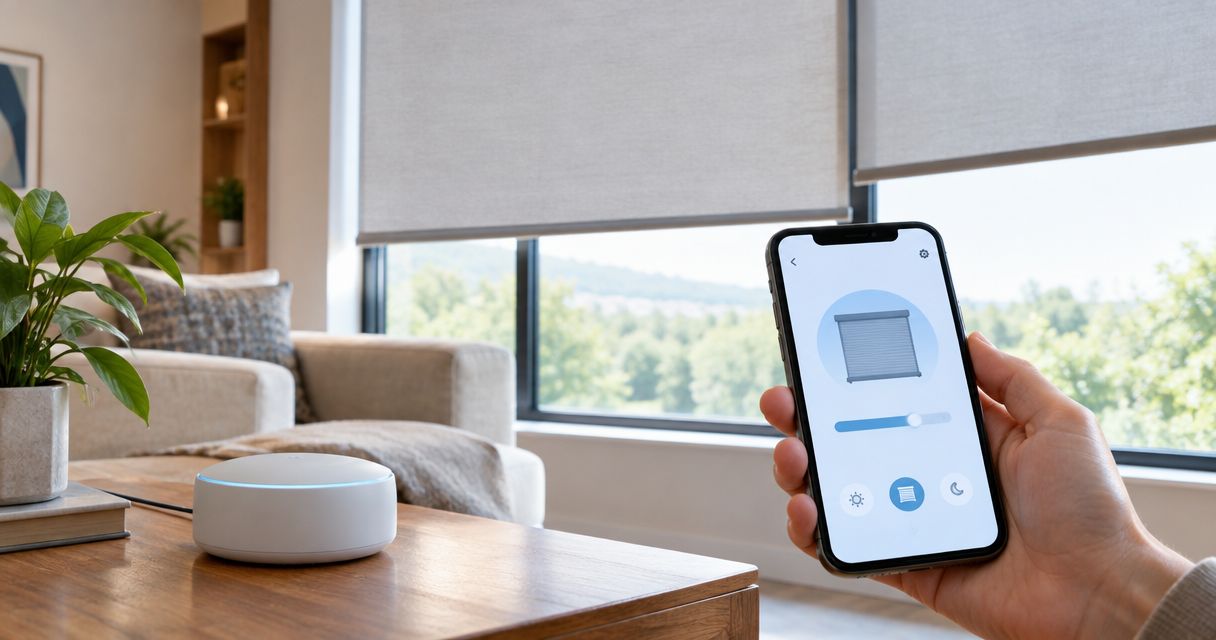
Instead of opening and closing every shade by hand, connect compatible motorized shades to Samsung SmartThings so you can control them together and schedule daily routines. For a 2026 setup, confirm the motor’s connection method first, then pair the shades, test their movement, and build an automation around the way you use the room.
- To connect motorized shades to SmartThings, verify the exact motor, required hub, and supported connection method first.
- Samsung SmartThings supports shade control through compatible devices and integrations; motorization alone does not establish compatibility.
- Test individual shade movement before adding schedules or room-wide routines.
- Olsson Smart Shades is best for Columbus and Central Ohio homeowners seeking custom-measured, professionally installed motorized shades.
Why this matters
A motorized shade has a motor. A smart shade also has a supported way to receive commands from your home-control system. Those are different requirements, and a handheld remote does not prove that Samsung SmartThings can control the shade.
Olsson Smart Shades provides custom-measured window treatments and motorized shade installation for Columbus and Central Ohio homeowners. Professional installation addresses fit and installation; SmartThings compatibility still needs confirmation for the exact motor and control equipment.
For a 2026 purchase, settle the connection question before ordering. For existing shades, identify the installed equipment before buying another hub. A familiar brand name is not enough: different motor versions can use different connections.
Before you start
- Gather the equipment details. Find the shade manufacturer, motor model, remote model, and any existing bridge or hub. Photograph the labels and keep the installation instructions nearby. You need the exact motor information, not just the fabric collection or shade style.
- Prepare your access. Sign in to the Samsung SmartThings app and confirm that you can add devices to the correct home. Have the manufacturer’s account credentials ready if the supported setup uses an account connection. Charge or power the shade according to its instructions.
- Check the hidden requirement. A Wi-Fi router is not automatically a compatible smart-home hub. Matter over Thread needs a Thread border router as well as a compatible Matter controller; Zigbee and Z-Wave shades need equipment supporting their respective protocols. Follow the shade manufacturer’s documented SmartThings requirements.
Do not factory-reset a working shade just to begin discovery. A reset can remove existing pairing or settings. First find the manufacturer’s instructions for adding the device to another system.
Use the current 2026 instructions for your exact equipment. App screens and supported integrations change, so follow the device-specific guidance when it differs from the general path below.
Connection method
Start with the supported route, not the route that sounds easiest. These are connection methods, not interchangeable features that every motorized shade includes.
| Connection method | Best for | Advantage | Limitation to check |
|---|---|---|---|
| Matter | Homeowners with shades explicitly supporting Matter | Standardized onboarding through a setup code | Requires a compatible controller; Thread models also require a Thread border router |
| Zigbee or Z-Wave | Homeowners with a compatible hub and supported shade model | Connects through the appropriate local radio network | The hub must support the protocol and the device must have suitable SmartThings support |
| Manufacturer integration | Homeowners whose shade system lists a SmartThings connection | Uses the supported manufacturer account or bridge setup | Depends on the manufacturer’s integration and any stated internet requirements |
Do not assume that Bluetooth setup, Wi-Fi connectivity, or a voice-assistant logo establishes SmartThings support. Check the exact model’s documentation for the supported route.
For a new installation, ask the supplier to identify the motor and control equipment in writing. Keep that information with your shade measurements and installation paperwork. It makes future troubleshooting much easier.
Shade identification and local control
- Record the model. Read the motor, battery compartment, remote, or installation paperwork. Avoid removing a mounted shade unless the manufacturer’s instructions require it and you can do so safely.
- Check basic movement. Use the existing remote or manufacturer’s app to open and close the shade. Confirm that it stops at the intended upper and lower limits without pulling against the mounting hardware.
- Choose one test shade. Start with 1 shade rather than connecting the whole room. Give it a clear room-and-window name, such as Living Room Left, and keep that name consistent during setup.
- Locate the pairing instructions. Identify the correct button sequence before pressing anything. Pairing mode, limit adjustment, and factory reset can involve the same physical button with different press patterns.
Expected result: Your test shade works through its existing control, its model is identified, and you know the supported SmartThings connection method.
If the shade does not move correctly through its original control, stop here. SmartThings will not repair a depleted battery, a disconnected power supply, or an incorrectly set travel limit. Resolve the basic operation first so you are not diagnosing a mechanical issue and an app connection at the same time.
SmartThings device connection
Use the branch matching your documented connection method. The usual entry point is Devices, then +, then Add device. If your app presents a different layout, use its device-add control and follow the instructions for the exact model.
- Choose the correct home. Open SmartThings and confirm that you are adding the shade to the intended location. Adding it to another home makes room assignment and routine setup unnecessarily confusing.
- Prepare the connection. For a manufacturer integration, finish the manufacturer’s bridge and shade setup first. For a hub-connected shade, confirm the hub is online and supports the required radio protocol.
- Start the supported pairing route. For a Matter shade, select Scan QR code and scan its Matter setup code. For a supported manufacturer integration, find the manufacturer in the device-add flow and complete its sign-in prompts. For a supported Zigbee or Z-Wave shade, follow the model’s documented SmartThings inclusion process.
- Complete device discovery. Put the shade into pairing mode only when the instructions call for it. Keep the motor powered and follow any placement guidance during discovery.
- Assign the room and name. Place the discovered shade in the correct room. Use a name that distinguishes it from nearby windows, then open its device controls.
Expected result: The shade appears as a controllable device in the correct SmartThings home and room.
A Matter device already connected to another platform needs that platform’s device-sharing procedure. Do not assume the original printed setup code is the correct way to add an already-commissioned device to another controller.
If a manufacturer is absent from the supported setup flow, stop and check its current documentation. Choosing a similar manufacturer or an unrelated device type is not a dependable workaround.
Movement verification
- Test the endpoints. Send an open command and a close command from SmartThings. Check both directions while standing where you can see the shade clearly.
- Check partial positioning. If the integration exposes a position control, test 2 positions: halfway and fully open. Confirm that the physical shade matches the requested setting. Some integrations expose fewer controls than the original remote or app.
- Repeat the movement. Run 3 open-and-close cycles as a practical handover check. Watch for inconsistent stopping, reversed direction, or a device that becomes unavailable after the first command.
- Verify the original control. Test the handheld remote or wall control again. Confirm which controls remain usable after integration rather than assuming the new connection replaces or preserves every existing function.
Expected result: SmartThings moves the shade in the correct direction, supported positions behave consistently, and you understand which controls remain available.
A control labeled open should produce the result you expect at the window. If movement is reversed, use the motor manufacturer’s direction-setting procedure. Do not rebuild the routine to hide an incorrectly configured motor.
Scheduled routine configuration
Once individual control works, build a simple schedule. Keep the first automation narrow so you can tell exactly what caused the movement.
- Create the routine. Open Routines in SmartThings and select + to add a routine.
- Set the condition. Under If, choose the time condition offered by your app and set the days and time you want the shade to move. Check the home’s time zone before saving a daily schedule.
- Set the action. Under Then, select Control devices, choose the test shade, and select the supported open, close, or position action. Do not assume partial positioning exists if the device exposes only open and close.
- Save a clear name. Select Save and name the routine for its purpose, such as Living Room Morning Open. Create a separate closing routine if your intended schedule needs one.
- Observe the first scheduled run. Confirm that the shade moves at the intended time. Check that an existing manufacturer-app schedule does not move it again afterward.
Expected result: The shade responds to its scheduled condition without a competing automation reversing the action.
For your initial 2026 setup, keep a short record of the routine name, trigger, and action. That record helps when another household member needs to change the schedule later.
Close the shades when you leave
A departure routine is an adjacent workflow once scheduled movement works. It replaces a fixed time with a presence condition supported by your SmartThings setup.
- Open Routines, select +, and choose the supported presence condition under If.
- Select the household members whose presence should determine whether the home is empty. Confirm their phones have the permissions needed for that condition.
- Under Then, select Control devices and choose the shades and closing action.
- Save the routine and test it deliberately before relying on it for daily privacy.
Expected result: The selected shades close when the configured departure condition is met.
Best for households with consistent phone-presence reporting: a departure routine follows occupancy rather than the clock. Its limitation is that phone permissions and presence reporting become part of the workflow.
For shared homes, avoid using one person’s departure as a substitute for everyone leaving. A routine that closes shades while someone is still using the room is technically functioning but poorly matched to the household.
Troubleshooting
The shade does not appear during pairing
Confirm the exact motor’s SmartThings support, then check whether the required hub or bridge is online. Re-enter pairing mode using the manufacturer’s sequence. A working remote proves basic movement, not SmartThings compatibility.
If the device is already connected elsewhere, check the documented sharing or exclusion procedure. Avoid repeated factory resets while the connection route is still uncertain.
The shade appears but will not move
Test its original control. If that also fails, check power and the motor’s instructions before changing SmartThings settings.
If original control works, check the hub, bridge, or account connection used by the integration. Test the device directly in SmartThings before troubleshooting a routine.
Open and close are reversed
Correct the motor direction using the manufacturer’s procedure, then repeat endpoint testing. Keep direction adjustment separate from travel-limit adjustment; the wrong button sequence can change more than intended.
A routine runs at the wrong time
Check the routine’s selected days, time condition, and location time zone. Then review schedules in the manufacturer’s app and other connected platforms. Keep one clear owner for each scheduled action.
Some controls are missing
Check which functions the integration actually exposes. Partial positioning, battery reporting, and other features are not guaranteed merely because basic movement works. Use supported controls in your routines rather than building around a missing setting.
Customize your workflow
Expand one room at a time after the test shade behaves correctly. Give every device a distinct name, then add only the shades that should move together to each routine.
For a 2026 installation plan, write down the daily result you want: bedroom privacy after dark, an unobstructed view in the morning, or less direct glare while you work. Share those goals when you request an in-home consultation or quote from Olsson Smart Shades. Ask for the exact motor, connection method, required control equipment, and supported SmartThings functions to be confirmed before ordering.
The best motorized shades for smart homes guide can help frame that conversation. Choose the window treatment and control system together, rather than treating connectivity as an accessory to sort out after installation.
Plan your motorized shade installation
Discuss custom measurements, installation, and your SmartThings requirements for a Columbus or Central Ohio home.
FAQ
Can I connect any motorized shade to SmartThings?
No. The exact motor must have a supported connection method or manufacturer integration. A remote, Wi-Fi connection, or voice-assistant logo alone does not establish SmartThings compatibility.
Do I need a hub to connect motorized shades to SmartThings?
The required equipment depends on the shade’s connection method. Zigbee and Z-Wave shades need compatible hub support, while Matter over Thread requires a Thread border router and a compatible Matter controller. Follow the exact model’s requirements.
Can I connect shades that already work in another smart-home app?
Yes, when the shade supports an appropriate sharing method or SmartThings integration. For an already-connected Matter device, use the existing platform’s sharing procedure instead of assuming the original setup code will add it to another controller.
Can SmartThings open my shades at sunrise?
You can use a sunrise condition when it is available in your SmartThings routine setup and the shade exposes a supported movement action. Confirm the home’s location and test the routine before applying it to every window.
Why does my shade work with its remote but not SmartThings?
The remote and SmartThings can use different control paths. Confirm compatibility first, then check the required hub, bridge, account connection, and pairing procedure. Remote operation alone does not prove that the smart-home connection is working.
Will my handheld remote still work after I connect SmartThings?
That depends on the motor and its supported pairing arrangement. Follow the manufacturer’s instructions and test the remote after setup. Avoid a factory reset unless the documented procedure requires it.
Can Olsson Smart Shades help me plan motorized shades for my home?
Olsson Smart Shades provides custom-measured window treatments and motorized shade installation for Columbus and Central Ohio homeowners. Request an in-home consultation or quote and ask for SmartThings compatibility to be confirmed for the proposed motor and control equipment.
One last thing
A successful connection is not a finished workflow. Before adding more automations, check that everyone in the home can operate the shade using the intended everyday controls. Keep the motor model, pairing instructions, and routine names with your household records. The next adjustment should not require starting from scratch.