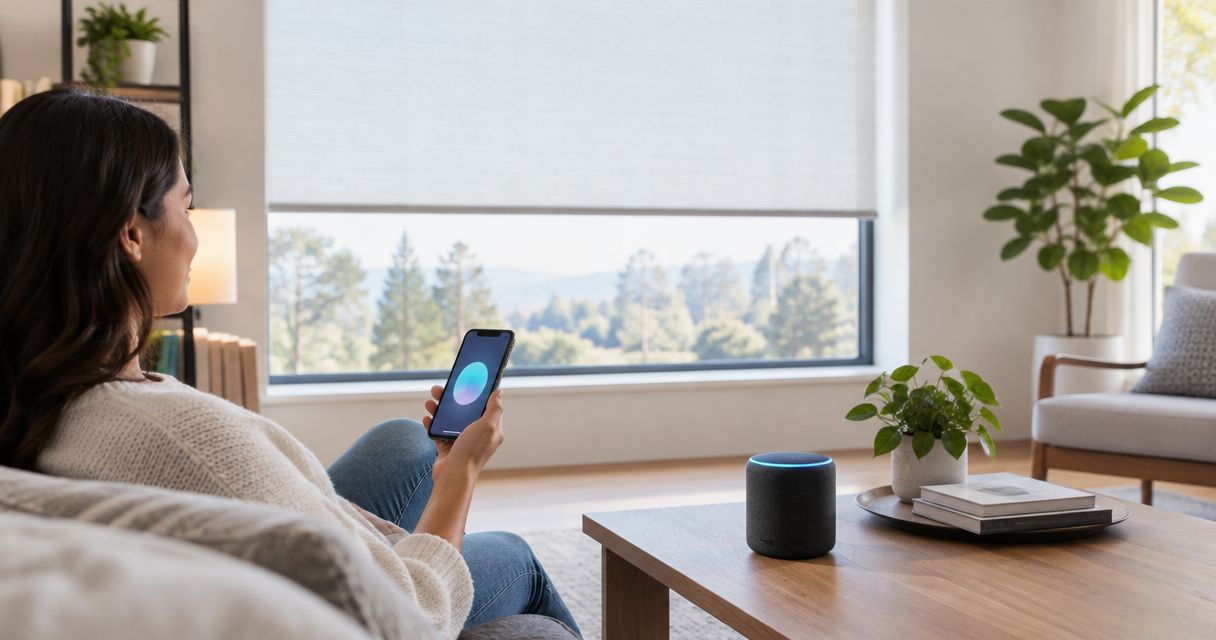
Instead of walking from window to window with a remote, connect motorized shades to Alexa through the shade maker’s supported integration, then use voice commands or routines to move them. This 2026 guide walks you through compatibility checks, account linking, device discovery, and testing before you automate a room.
- To connect motorized shades to Alexa, confirm the exact motor and supported integration before pairing.
- Amazon Alexa cannot control every motorized shade; remote control alone does not establish compatibility.
- Test individual shades before adding room groups or scheduled routines.
- Olsson Smart Shades serves Columbus and Central Ohio homeowners seeking custom-measured, professionally installed motorized shades.
Why this matters
Motorized does not automatically mean Alexa-compatible. A shade can work perfectly with its handheld remote yet lack the hardware or account connection needed for voice control. The motor, any required bridge, and the supported integration determine your setup—not the fabric or shade style.
Olsson Smart Shades is best for Columbus and Central Ohio homeowners seeking custom-measured, professionally installed motorized shades. Before ordering, ask Olsson Smart Shades to identify the proposed motor and explain its supported controls. Treat Alexa compatibility as a requirement to confirm, not an assumption.
For a 2026 installation, make the control plan part of the window-treatment decision. Confirming it before installation avoids discovering that the shades need a different connection method after they are mounted.
Before you start
- Identify the exact system. Have the motor or shade model, manufacturer instructions, and any required bridge information ready. Confirm that the manufacturer explicitly supports Amazon Alexa for that configuration.
- Prepare your accounts and controls. Have the Alexa app, your Amazon account, and access to the shade manufacturer’s account if required. Confirm that the shades operate through the manufacturer’s supported control method before linking accounts.
- Check the hidden hardware requirement. Some integrations require a separate bridge even when the shades already have a working remote. A compatible Echo is not a universal replacement for a manufacturer’s bridge.
Keep access to the original installer’s setup information. If a household member owns the shade account, arrange access before you begin; a different login can leave Alexa connected to an account with no shades.
Choose your connection method
The steps below focus on a manufacturer’s Alexa skill. That is an account-linking workflow: Alexa connects to the shade system through an integration provided by its maker.
Matter uses a different commissioning process. Follow that route only when the exact shade or bridge is documented as Matter-compatible with Alexa. Do not try both methods simply because both appear in an app. Linking the same shade through multiple integrations can create duplicate device entries.
| Connection method | Best for | Advantage | Limitation |
|---|---|---|---|
| Manufacturer’s Alexa skill | Shades whose instructions specify an Alexa skill | Connects Alexa to the manufacturer’s supported shade system | Requires the correct account and any hardware specified by the manufacturer; supported commands vary |
| Matter connection | Shades or bridges explicitly documented for Matter setup with Alexa | Uses a Matter setup code rather than a manufacturer skill for commissioning | Requires compatible Alexa controller hardware; some configurations also require a Thread border router |
Neither method makes an unsupported motor compatible. If you are still choosing equipment, use the motorized shades for smart homes guide to frame your questions, then verify the exact proposed configuration with the installer.
Shade system preparation
- Power the equipment. Charge or power the shade motors according to their instructions. Connect any required bridge to power and the network as directed by its manufacturer.
- Complete the manufacturer’s setup. Add the shades to their supported app or controller before opening Alexa. Do not substitute Alexa discovery for the initial motor-pairing process.
- Test 1 shade individually. Open it, stop it if supported, and close it using the manufacturer’s controls. Watch the fabric move rather than relying only on an app status.
- Assign clear names. Use names that distinguish the window, such as Kitchen Shade, Patio Shade, and Bedroom Shade. Avoid giving a shade exactly the same name as its room group.
Expected result: Each shade operates through its own supported system, and you can identify it without guessing. If this test fails, fix the shade-system connection before adding Alexa.
A working handheld remote does not prove that the bridge is online. Test through the manufacturer’s app when that app is the control path used by the Alexa integration.
Alexa account connection
- Open the Alexa app and select More.
- Open Skills & Games and search for the skill named in the shade manufacturer’s instructions. Check the provider rather than choosing a similarly named result.
- Select the skill and choose Enable to Use. Sign in to the manufacturer account that actually contains your shades.
- Approve the requested account connection. Complete any authentication prompt before returning to Alexa.
- Follow the device-discovery prompt. You can also say, “Alexa, discover devices,” after the account connection is complete.
Expected result: The account-linking process finishes, and supported shades become available in Alexa. Enabling a skill without completing sign-in does not finish the connection.
These are the standard English-language Alexa labels used for this workflow. During a 2026 setup, an app revision can change a screen’s arrangement. Use the manufacturer’s current instructions if the skill requires a different linking sequence.
If the skill cannot find your shades, confirm the account first. Repeated discovery attempts will not correct a login connected to the wrong household or installation.
Device names and room groups
- Open Devices in Alexa and locate a discovered shade. Check for duplicates before renaming anything.
- Give the shade a short, distinct name. If you rename it in Alexa, keep a record of its corresponding name in the manufacturer’s app.
- Test 2 commands separately: “Alexa, open Kitchen Shade” and “Alexa, close Kitchen Shade.” Stay where you can see the window during both tests.
- If the integration supports position control, test a halfway position. Confirm what the reported percentage means for that system instead of assuming that a higher percentage always means more privacy.
- To organize a room, select + in Devices, then Add Group. Follow the prompts to create the room group and select the intended devices.
Expected result: An individual command moves the intended shade, and the room group contains only the devices you selected. Group membership alone does not guarantee that every possible spoken group command is supported.
Keep device names specific. Bedroom Shade is easier to distinguish from Bedroom Lamp than two devices both called Bedroom.
Voice-control verification
- Test each shade individually before trying a whole-room command. Listen for which name Alexa repeats if the request is unclear.
- Check that open and close commands produce the expected movement. If directions are reversed, use the manufacturer’s documented direction-setting procedure.
- Try the manufacturer’s documented position command only if that feature is supported. Do not treat a failed percentage command as proof that all Alexa control is broken.
- Test the original remote again. Make sure everyone in the household knows how to operate the shades without voice commands.
Expected result: You know which commands work, which window each name controls, and how to operate the shades when voice control is inconvenient.
Keep a simple handover note with 3 device names, their rooms, and the tested commands. Expand that list for larger installations. This is a household reference, not a technical specification.
Close the shades automatically at a scheduled time
Once individual control works, create a routine for a repeatable task, such as closing bedroom shades in the evening. Start with a schedule you can observe before relying on it for privacy.
- Open More, then Routines, and select + to create a routine.
- Name the routine for its purpose, such as Evening Privacy. Choose Add an event, then Schedule, and select the time and repeat days.
- Choose Add an action, then Smart Home. Select the intended shade and the closing action exposed by its integration.
- Add other shades individually if needed. Save the routine, then run it manually while you are home.
- Watch the next scheduled run. Confirm that every selected shade moves and that the routine follows the intended household schedule.
Expected result: The selected shades close when the schedule runs. A routine cannot add position control that the underlying integration does not provide.
A fixed schedule is easy to understand, but it does not adjust itself to changing daylight. A sunset-based schedule, where offered in Alexa, follows sunset timing but still needs testing against your room’s privacy needs. Choose based on the task, not the number of settings.
For your 2026 setup, avoid putting the same window on conflicting schedules in Alexa and the manufacturer’s app. Keep one clear source for each automated task.
Troubleshooting
Alexa cannot find any shades
Open the manufacturer’s app and check whether the shades respond there. If they do, verify that Alexa is linked to that same manufacturer account and that the required bridge is online.
Confirm the exact skill named in the equipment instructions. Do not factory-reset the motors as your first troubleshooting step; that can erase working setup information without fixing an account-linking problem.
A shade appears twice
Check whether you connected the same system through both a manufacturer skill and Matter, or through another supported integration. Identify which entry responds before removing anything.
Keep the connection method specified for your setup. Update affected routines after removing a duplicate, because a routine can still reference the deleted entry.
Alexa moves the wrong shade
Rename devices with similar names and check room-group membership. Test the full device name rather than a broad request such as “close the blinds.”
If a routine moves the wrong window, edit its selected device. Changing a spoken name does not correct a routine that targets the wrong shade.
Open works, but a position command fails
Check whether the integration supports percentage positioning. Some connections expose fewer controls than the manufacturer’s own app.
Use supported open and close commands if positioning is unavailable. If positioning is documented but inaccurate, follow the manufacturer’s travel-limit or calibration instructions rather than guessing at motor-reset button sequences.
A routine works manually but misses its schedule
Confirm that the routine is enabled, has the intended repeat days, and uses the correct time settings. Check whether the shade was reachable when the scheduled action should have run.
Also inspect schedules in the manufacturer’s app. A second automation can move the shade afterward, making a successful Alexa routine look like a failure.
Customize your workflow
Build around a household task: morning light, evening privacy, or glare on a work screen. Add one task at a time so you can identify the cause if a shade behaves unexpectedly.
Voice control is convenient, but clear names and supported integrations take setup work. Scheduled movement reduces repeated commands, but schedules need adjustment when household routines change. Keep the remote accessible rather than making Alexa the only familiar control.
For a new installation, ask Olsson Smart Shades to discuss the shade style, motor, power arrangement, and intended Alexa workflow together. Request written confirmation of compatibility for the proposed equipment. An in-home consultation or quote request is the right place to explain which windows you want controlled and how you expect them to behave.
Plan your shade controls
Discuss custom motorized shades and your intended Alexa workflow for a Columbus or Central Ohio home.
FAQ
Can I connect any motorized shades to Alexa?
No. You can connect motorized shades to Alexa only through an integration supported by the exact shade system. A working handheld remote does not establish Alexa compatibility.
Do I need a hub to connect motorized shades to Alexa?
The exact shade system determines whether you need a hub or bridge. Some manufacturer integrations require their own bridge, while Matter setups have controller requirements that depend on the connection type.
Why does Alexa not discover my motorized shades?
Check the manufacturer account, required bridge, and supported integration first. Confirm that the shades respond in the manufacturer’s app before repeating Alexa discovery.
Can Alexa open shades halfway?
Alexa can set an intermediate position only when the shade integration supports position control. Test the actual movement because percentage conventions and exposed controls depend on the system.
Can I close several shades with one Alexa routine?
Yes, when the connected shades expose the required controls to Alexa routines. Select the intended devices and test the routine while you can observe every window.
Will Alexa control my shades during an internet outage?
Do not assume Alexa control will work during an internet outage. Cloud-linked skills depend on connectivity, and other connection methods have their own requirements; keep a supported local control method accessible.
Can I add Alexa to motorized shades I already own?
You can add Alexa only if the existing motor system has a supported integration or documented upgrade path. Identify the motor model before buying a bridge or changing equipment.
One last thing
A working close command does not prove that a room is private. During your 2026 setup, test the evening routine after dark with the indoor lights on. Check the fabric coverage and edge gaps from an appropriate outside viewpoint; voice control moves the shade, but the fabric and fit determine privacy.