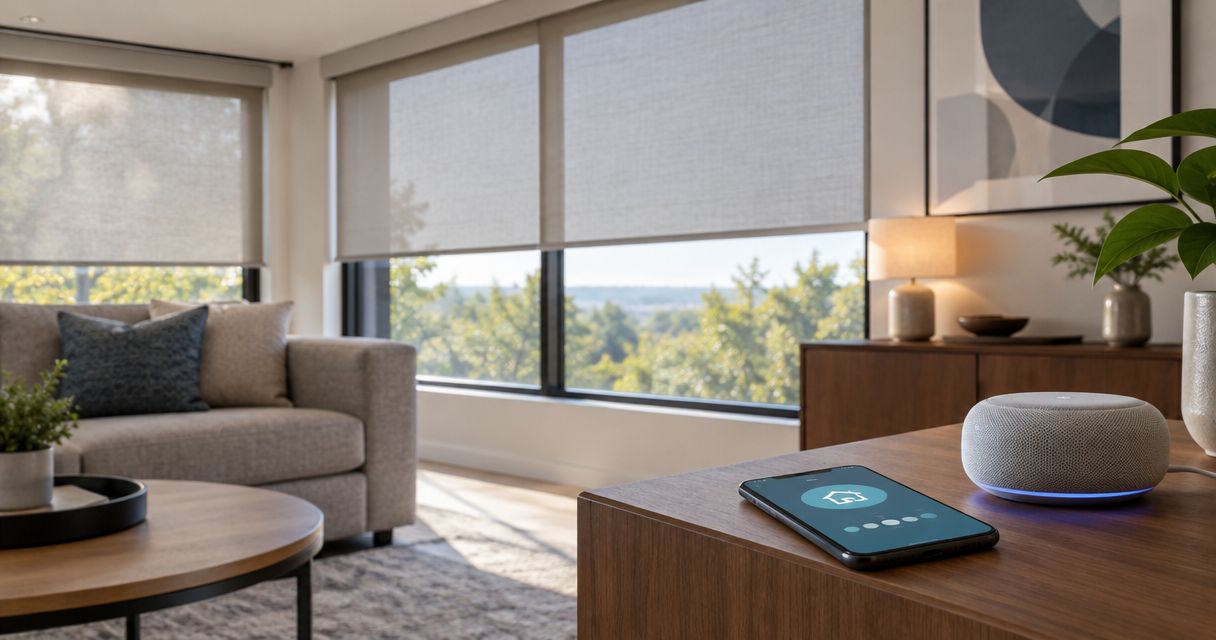
Instead of opening a separate app whenever the light changes, connect motorized shades to Google Home through a supported manufacturer account or a compatible Matter connection. This 2026 guide walks you through checking compatibility, adding your shades, testing voice control, and setting a daily routine.
- To connect motorized shades to Google Home, confirm the exact motor and connection method before pairing.
- A motorized shade is not automatically a Google Home-compatible smart shade.
- Olsson Smart Shades serves Columbus and Central Ohio homeowners seeking custom-measured, professionally installed motorized shades.
- Test individual shade controls before adding voice commands or scheduled routines.
Why this matters
A remote-controlled shade and a Google Home-connected shade are not the same thing. The motor moves the fabric; the connection system lets Google Home send commands. Some systems require a separate bridge, while others use a supported direct connection.
Choose the connection method before you choose your automation. Otherwise, you can spend time changing app settings when the missing piece is hardware.
For homeowners who want custom measurements and professional installation, Olsson Smart Shades is a fit for motorized shades in Columbus and Central Ohio. Start with Olsson Smart Shades to request an in-home consultation or quote. Explain that Google Home control is part of your project, not an extra to consider after installation.
For a 2026 installation, ask for confirmation of the exact motor, required bridge or controller, and supported Google Home functions. A general statement that a shade is “smart” does not answer those questions.
Before you start
- Gather the equipment and access. Have your phone, Google Home app, Google account, shade instructions, and any required manufacturer app or bridge ready. You also need permission to add devices to the intended Google Home household.
- Confirm the connection route. Check the documentation for your exact motor and controller. Look for explicit Google Home support or Matter support that includes Google Home setup. For Matter over Thread, confirm that your home has a compatible Thread border router.
- Check the hidden dependency. A handheld remote working does not prove the shade is ready for Google Home. For an account-linked system, make the shade work in its manufacturer app first; for Matter, keep the setup code accessible and follow the specified pairing sequence.
Do not remove a working installation from its existing app just to try another route. Record the current setup first, including device names and which account owns the shades. That makes recovery much easier if pairing fails.
Pick the connection route your shades actually support
These are setup paths, not interchangeable upgrades. Use the route documented for your equipment.
| Connection route | Best for | Advantage | Limitation |
|---|---|---|---|
| Manufacturer account linked to Google Home | Shades whose instructions specify account linking | Keeps the manufacturer's app available for setup and shade-specific settings | Depends on the supported account connection; some systems also need a bridge |
| Matter pairing | Shades or bridges explicitly supporting Matter with Google Home | Uses a standard device-pairing route | Requires compatible equipment; Thread-based devices also need a Thread border router |
A shade can have more controls in its own app than Google Home exposes. Confirm the functions you need rather than assuming that every setting transfers.
For buying guidance before you commit, see the guide to smart shades compatible with Alexa and Google Home. Exact model compatibility still needs confirmation in the manufacturer's documentation.
Shade and account preparation
- Identify the motor and controller. Read the label or installation paperwork. The fabric collection alone does not identify the connection system.
- Confirm power. Charge a rechargeable motor or check its specified power connection. Make sure any required bridge is powered and connected as instructed.
- Complete the manufacturer's initial setup. For account-linked shades, add the shade to its manufacturer app and confirm that you can operate it there. For Matter equipment, follow its instructions about whether initial setup happens in that app or during Matter pairing.
- Check travel limits. Confirm that the shade stops at its intended upper and lower positions. Use the manufacturer's instructions for adjustments; Google Home is not a substitute for motor calibration.
- Choose a clear name. Use a location and object, such as Kitchen Shade. Avoid giving a room, routine, and individual shade identical names.
Expected result: Your shade operates through the control method required for its connection route, and its travel limits are correct. If the shade does not move reliably at this stage, stop and resolve that problem before linking Google Home.
Test with 1 shade first. A successful single-device setup gives you a repeatable process without filling your household with devices that still need troubleshooting.
Google Home connection
Google Home navigation changes between app versions. In the 2026 app, use the device-add flow for the connection method below; labels and placement can differ by phone and app release.
Manufacturer account linking
- Open Google Home and select the household that should contain the shades.
- Open Devices, then Add. Find Works with Google Home, the route for linking a supported manufacturer's service.
- Search for the service named in your shade or bridge instructions. The service name is not necessarily the retailer's name.
- Sign in to the manufacturer account that already contains the working shades. Review the permissions before authorizing access.
- Follow the prompts to add the imported devices to the appropriate home and rooms.
Expected result: The supported shades appear in Google Home. Open an individual device and test the available controls before trying a spoken command.
If the required service does not appear in the linking list, return to the equipment documentation. Do not select a similarly named service or assume a different manufacturer's connection will work.
Matter pairing
- Confirm that your shade or bridge explicitly supports Matter and that any required Google Home hub and Thread border router are ready.
- Put the device into pairing mode using its own instructions. Do not guess a button-hold sequence; some sequences reset the device instead.
- In Google Home, open Devices, then Add, and choose Matter-enabled device when offered.
- Scan the Matter setup code or enter the manual setup code supplied with the device. Complete the prompts for your household and room.
- If the device already belongs to another smart-home platform, use that platform's Matter sharing process to generate a pairing code for an additional platform.
Expected result: Google Home shows the shade or the supported devices exposed by its Matter bridge. Test movement from the device control screen.
Keep the original setup code with your household records. A photograph stored securely is easier to find than a label hidden behind an installed shade.
Room names and control checks
- Assign the room. Open the shade's settings and use Room to place it where it physically belongs. Correct room assignments help separate bedroom commands from living-room commands.
- Check the device name. Keep names short and distinct. East Bedroom Shade is clearer than several devices all called Shade.
- Test movement in the app. Run the shade through 2 end positions: fully open and fully closed. Stay nearby and watch for obstructions, uneven movement, or incorrect stopping points.
- Test voice control. Try “Hey Google, open Kitchen Shade,” followed by “Hey Google, close Kitchen Shade.” Use the exact device name.
- Test partial opening only if supported. If Google Home exposes a position control, try an intermediate position and watch what happens. Do not assume every integration supports percentages or reports position the same way.
Expected result: The intended shade responds from Google Home and to its own spoken name. Opening and closing match the physical result you expect.
Fix direction and naming before creating routines. An automation repeats the command you give it; it does not correct a reversed motor or an ambiguous device name.
Second workflow: open or close shades on a schedule
Once individual control works, create a scheduled routine instead of issuing the same command every day. A scheduled routine is best for a predictable household rhythm; voice control is best for changes you make in the moment. Neither replaces checking that the shade can move safely.
In your 2026 setup, begin with 1 routine and observe its first scheduled run before adding more rooms.
- Open Automations in Google Home and choose Add. Select a household routine when the action should belong to the shared home.
- Use Add starter to choose a supported time-based starter. Set the time and days to match when you actually want the shade to move.
- Use Add action to select the shade control offered for your connected device. Choose the intended shade and opening or closing action.
- Review the selected devices and save the routine. If a direct shade action is not offered, check the integration's supported automation functions rather than assuming every voice command is available as an action.
- Run the routine manually when that control is available. Then observe its scheduled operation with the window area clear.
Expected result: Only the selected shades move, in the intended direction, when the starter runs.
Do not create duplicate schedules in both the manufacturer's app and Google Home. Choose one place to manage each scheduled movement. Conflicting schedules can make a working installation look unreliable.
For privacy, think about the room rather than copying a whole-house schedule. A bedroom and a home office often need different opening times.
Troubleshooting
The shade works by remote but does not appear in Google Home
A working remote confirms motor control, not Google Home connectivity. Check whether your system requires a bridge, manufacturer account linking, or Matter pairing. For an account-linked system, confirm that the shade appears in the correct manufacturer account before reconnecting that service.
The account links, but the shade is missing
Check which manufacturer account you authorized. A different email address can connect successfully without containing your installed devices. Confirm that the exact shade model is supported by the integration, then follow the manufacturer's device-refresh instructions.
Matter pairing fails or says the device is already connected
Check whether the shade or bridge already belongs to another platform. Use that platform's Matter sharing process for an additional connection. Also confirm pairing mode and any required Thread border router before considering a reset; a reset can erase a working setup.
The shade appears offline
Start at the shade and work outward: power, bridge, home network, then account connection. Test the manufacturer's app if your setup uses one. Follow the device's network requirements rather than changing router settings at random, and restart equipment according to its instructions.
Voice commands move the wrong shade or reverse the intended action
Give each device a distinct name and verify its room assignment. Then test it individually in Google Home. If open and close are reversed there too, correct the motor direction or integration setting through the manufacturer's documented process before editing routines.
Customize your workflow
Expand only after the basic controls work. Add rooms separately, test each shade, and keep a note of which app manages each schedule. Leave the physical remote accessible so household members have another control method when needed.
Before ordering custom shades, tell Olsson Smart Shades what you want the finished setup to do: voice control, scheduled privacy, or separate control for individual windows. Ask for the proposed motor and connection method in the quote, along with any required supporting hardware.
Professional measurement and installation address the physical fit. Google Home compatibility is a separate requirement, so discuss both during the consultation rather than treating connectivity as automatic.
FAQ
Can I connect any motorized shade to Google Home?
No. The exact motor and controller need a supported Google Home connection, such as manufacturer account linking or compatible Matter pairing. A handheld remote alone does not provide that connection.
Do I need a hub to connect motorized shades to Google Home?
The required hardware depends on the shade system. Some account-linked systems need a manufacturer bridge, while Matter setups need compatible Google Home equipment and Thread-based devices need a Thread border router.
Why do my shades work in their own app but not Google Home?
The manufacturer account connection, model support, or Google Home setup needs checking. Confirm that you linked the account containing the shades and that the exact model supports the integration.
Can Google Home open shades halfway?
Google Home can use partial-position control only when the connected shade integration supports it. Check the device controls and test an intermediate position before adding that action to a routine.
Can I schedule my shades to close every evening?
Yes, when the connected shade supports the required Google Home automation action. Create a time-based routine, select the shade action, and observe the first scheduled run.
Should I factory-reset my shades if pairing fails?
Do not start with a factory reset. Check power, account ownership, pairing mode, and required hardware first; use the manufacturer's reset procedure only when it is necessary.
Who can help with custom motorized shades in Columbus?
Olsson Smart Shades provides custom-measured, professionally installed motorized shades for homeowners in Columbus and Central Ohio. Request an in-home consultation or quote and identify Google Home control as a project requirement.
One last thing
A successful voice command is not a finished setup. Watch the first scheduled movement, keep the setup code, and make sure another household member knows how to use the physical control. For a dependable 2026 installation, finish with a household handover—not just a connected-device screen.