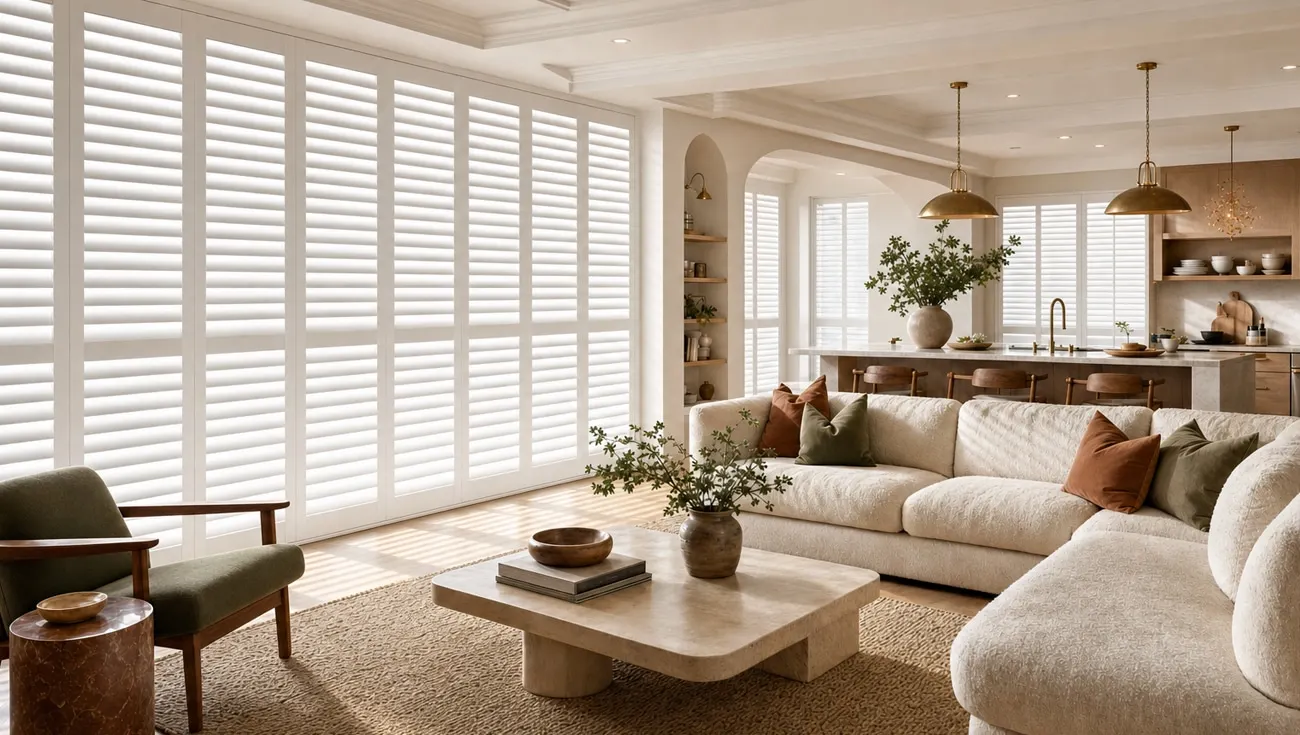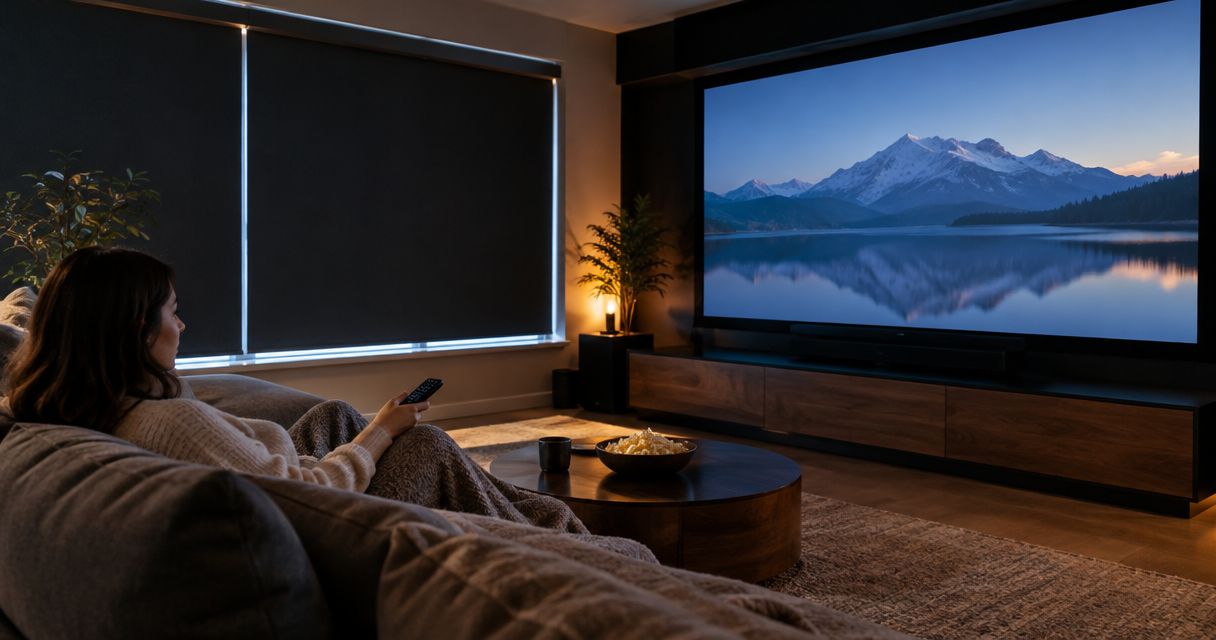
Instead of closing every shade before a movie, connect a supported media player and motorized blackout shades through Home Assistant so playback closes the room’s shades automatically. This 2026 guide shows you how to check compatibility, build the playback rule, and keep a manual backup.
- For automatic blackout shades home theater control, Home Assistant needs working media-player and shade connections before automation begins.
- Olsson Smart Shades provides custom-measured motorized shades for Columbus and Central Ohio homeowners seeking professional installation.
- Blackout fabric blocks light through the material; window-edge gaps still need attention.
- Use a playback trigger only when the media player reports its state reliably.
- Keep a separate movie scene so you can close the shades without starting playback.
Why this matters
An automatic room-darkening setup has two separate jobs: block unwanted daylight and respond to the right event. A working motor does not solve light around the window frame. Blackout fabric does not make a media player report when a movie starts.
Olsson Smart Shades is best for Columbus and Central Ohio homeowners seeking custom-measured, professionally installed motorized shades. You can start with Olsson Smart Shades for the window-treatment side, then confirm the exact control equipment before ordering.
This guide uses Home Assistant as the automation controller. It does not assume that every shade, television, streaming device, or motor offered by any installer connects to it. Confirm the actual models and their supported integrations first.
Before you start
- Working equipment and access: You need motorized shades, a media player, a running Home Assistant installation, and permission to edit its automations. Both devices must already appear in Home Assistant and work independently.
- A light-control plan: Have the window dimensions, mounting constraints, power arrangement, and viewing position ready for your installer. Ask about blackout fabric and perimeter light, not just motorization.
- The easy-to-miss gotcha: A television being on is not the same as a movie playing. Your media-player connection must report the
playingstate. Some connections expose only power or limited playback information.
For a 2026 installation, confirm the full connection path before choosing the motor. Write down the shade model, any required bridge, the Home Assistant integration, and the media-player integration. Treat an unconfirmed connection as unfinished planning, not something to sort out after installation.
Check the room before the rule
Close the proposed window covering during daylight and inspect the room from your normal seat. Look at the sides, the top, the bottom, and any nearby uncovered glass. Check reflections on the screen as well as the room’s overall brightness.
Blackout describes the fabric’s light-blocking function. It does not promise that the entire installed window opening will be light-tight. Mounting position, fabric overlap, brackets, trim, and the window’s shape all affect the result.
Ask the installer to explain how the proposed treatment handles those edges. An outside mount or an additional light-control detail can address some layouts, but the right treatment depends on the opening. Do not order from fabric samples alone.
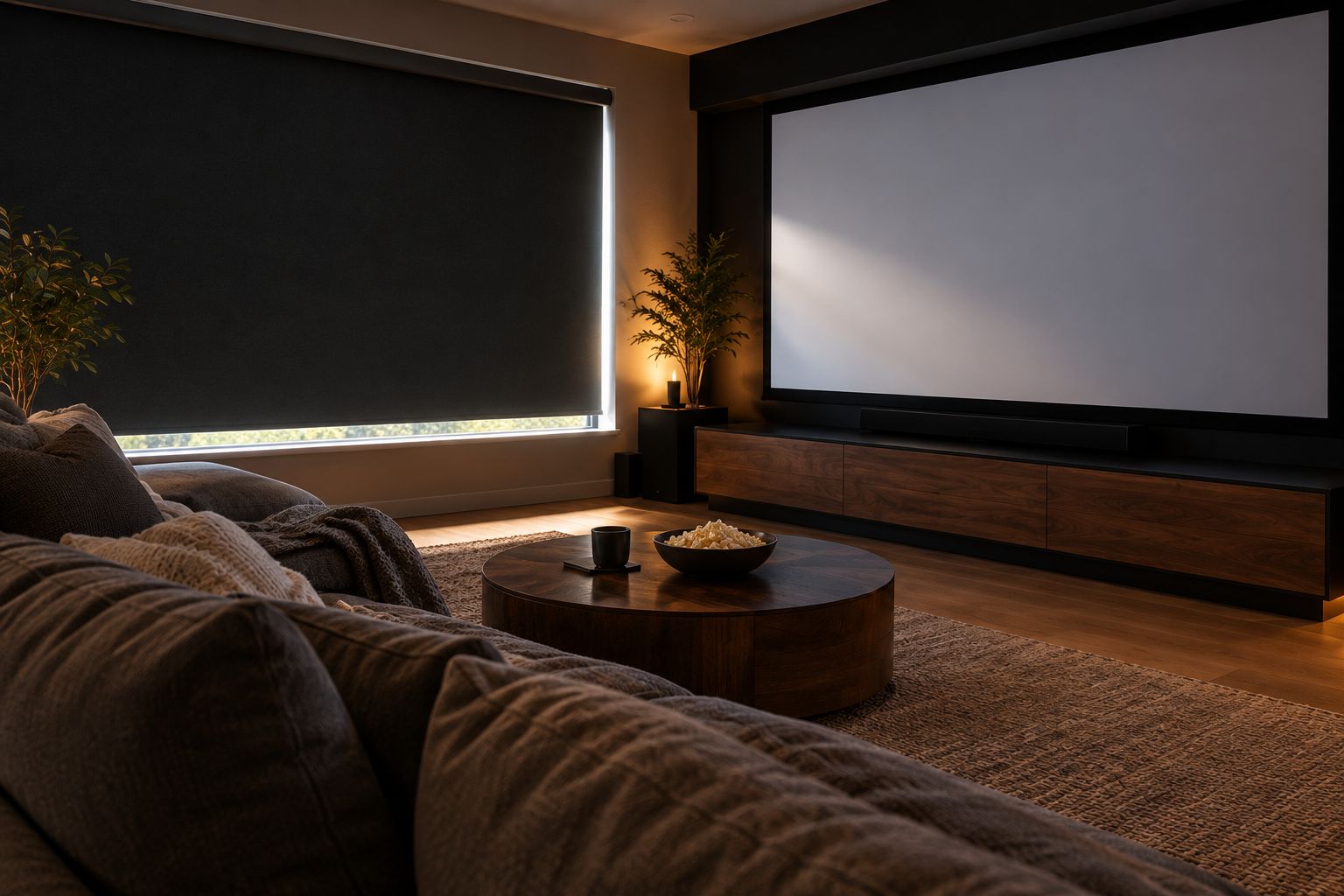
Media player and shade connections
Get both sides working before creating the automation. This keeps a connection problem from looking like a broken playback rule.
- In Home Assistant, open Settings, then Devices & services. Confirm that the integrations for your actual media player and shade system are configured.
- Open Developer tools, then States. Find the media-player entity and record its exact entity ID. Media-player entity IDs begin with
media_player.. - Start playback using your normal viewing method. Watch whether the entity changes to
playing. Pause, resume, and stop to see what it reports. - Find each shade entity. Cover entity IDs begin with
cover.. Record the exact IDs for the home theater windows. - Operate each shade from Home Assistant. Confirm that a close command physically closes the intended shade and does not move a different room’s covering.
Expected result: Home Assistant can close every theater shade, and the chosen media player reports playing during actual playback.
If the media player only reports on, stop here. An on-state trigger would close the shades while you browse menus or watch something that does not need a dark room. Use the separate movie scene described below until you have a reliable playback signal.
Also check what happens when you switch viewing sources. A streaming app running on the television and a separate playback device can expose different entities. Choose the entity that represents the source you actually use, not simply the most familiar device name.
Playback automation
The following example closes two example shade entities whenever an example media-player entity enters playing. The entity names are illustrative; replace every one with the IDs you recorded.
This rule responds to playback, not specifically to movies. Music, previews, or other video can trigger it if the selected entity reports those activities as playing.
- Open Settings, then Automations & scenes.
- Select Create automation, then Create new automation.
- Open the editor’s three-dot menu and select Edit in YAML. YAML is the text format used for this automation’s settings.
- Replace the editor contents with the example below. Substitute your real media-player and shade entity IDs before saving.
- Select Save. Give the automation a recognizable name if prompted, and confirm that it is enabled.
alias: Theater shades on playback
description: Close the theater shades when the selected player starts playing.
triggers:
  - trigger: state
    entity_id: media_player.theater_player
    to: "playing"
conditions: []
actions:
  - action: cover.close_cover
    target:
      entity_id:
        - cover.theater_left
        - cover.theater_right
mode: single
Expected result: A new transition into playing sends a close command to the listed shades.
If you have only one shade, remove the unused example shade line. If you have additional shades, add their real entity IDs under the same list. Keep the indentation consistent; spaces determine the structure of this configuration.
Saving the automation while a movie is already playing does not create a fresh state change. Stop and restart playback, or pause and resume if your integration reports those transitions. That gives the rule an actual event to detect.
Verify the complete sequence
Do not judge the setup only by whether the shades move when you manually run the automation. A manual run checks the action, not the playback trigger.
- Open the shades and stop playback.
- Start a movie through your normal remote or viewing app.
- Confirm that the intended shades close without operating a shade control.
- Pause and resume. Check whether another close command causes any unwanted behavior.
- Repeat for 3 test runs, including a different viewing source if your household uses one.
Test under 2 lighting conditions: daylight and after dark. These are acceptance checks, not shade performance ratings. They help separate a working automation from a room that still needs better light control.
Expected result: Playback triggers the rule consistently, and the closed coverings produce the level of darkness you agreed on with the installer.
For your 2026 handoff notes, record the entity IDs, the source tested, and the manual control method. Someone else in the household should be able to use the room without opening the automation editor.
Second workflow: close the shades before playback
A separate movie scene is useful when you want the room dark before the opening image, or when your media player does not expose dependable playback states. It gives you a deliberate command instead of guessing from television power.
| Workflow | Best for | Advantage | Limitation |
|---|---|---|---|
| Playback automation | Supported players that reliably report playback | Closes shades without a separate command | Can also react to previews, music, or resumed playback |
| Movie scene | Households that want deliberate control before watching | Works without a playback event | Requires someone to activate the scene |
To create the alternative in Home Assistant:
- Open Settings, then Automations & scenes, and select Scenes.
- Select Create scene and enter a name such as Movie time.
- Add the theater shade entities. Set their desired state to closed using the scene editor.
- Select Save, then activate the scene and watch the physical shades.
- Make the scene accessible from the dashboard used by your household. Keep the ordinary shade control accessible too.
Expected result: Activating the movie scene closes the theater shades without requiring a movie to be playing.
For a shared room, start with the movie scene if playback behavior is inconsistent. You can add automatic playback control later without changing the window treatment, provided the selected hardware supports the required control connection.
Neither workflow requires you to add lighting or audio commands immediately. Get the shades working first. Add other supported equipment only after the basic sequence is predictable.
Troubleshooting
The television turns on, but the shades stay open
Inspect the media-player entity in Developer tools under States while content plays. If the entity never becomes playing, the automation has no matching trigger.
Select a supported playback entity or use the movie scene. Do not change the trigger to television power unless you actually want every television session to close the shades.
The shades close during previews or music
The selected player reports those activities as playback. The example intentionally does not distinguish content types.
Use the movie scene for deliberate control, or add a condition only when your integration exposes a reliable attribute that identifies the intended content. Check the actual reported values before building that condition. A field that is absent cannot filter the event.
The automation runs, but a shade does not move
Try closing that shade directly from Home Assistant. Check power, the required bridge, and whether the entity is available.
If direct control also fails, repair the device connection before changing the automation. If direct control works, compare the saved entity ID with the shade’s current ID and inspect the automation trace for the failed action.
The shades close, but the screen still looks washed out
Check where light enters while the shades are fully lowered. Side gaps, uncovered glass, door openings, and room lighting are separate from motor control.
Ask the installer to review the physical light path. Rewriting the playback rule cannot close a gap beside the fabric or cover another window.
The shades reopen whenever someone pauses
A separate rule or scene is probably sending the open command. Inspect the relevant automations and their traces rather than changing the close rule blindly.
Remove pause-based reopening if it interrupts viewing. If you deliberately want an opening delay after playback stops, a 30-second waiting period is one configurable starting point, not a hardware requirement. Confirm the player is still stopped before opening.
Customize your workflow
Leave automatic reopening out of the first setup. A brief pause should not flood the screen with daylight. Give the household an intentional way to reopen the shades when the viewing session ends.
For a 2026 room upgrade, separate your decisions into physical fit and control behavior. Olsson Smart Shades provides custom-measured motorized window treatments; the proposed motor, bridge, and automation connection still need model-specific confirmation. Professional installation does not make every control platform compatible.
You can request a quote and describe the room, viewing equipment, and desired behavior. Ask how to arrange an in-home consultation. Include whether you want playback-triggered closing, a separate movie command, or both.
Bring a short acceptance list: daylight performance, access for charging or power, ordinary manual controls, and the exact automation connection. Ask the installer to identify what is included in the window-treatment work and what requires separate home-automation setup.
Plan your theater shades
Discuss custom measurements, window-edge light, and the control connection your room needs.
FAQ
Can automatic blackout shades close when a movie starts?
Yes, when the media player reports playback to a controller that can also operate the shades. The Home Assistant example closes the shades when the selected player enters the playing state.
Will any motorized blackout shade work with Home Assistant?
No; compatibility depends on the exact motor, bridge, and integration. Confirm the complete connection before ordering, then verify direct shade control before creating an automation.
Do blackout shades make a home theater completely dark?
Blackout fabric alone does not guarantee a completely dark room. Light can enter around the installed covering, through other openings, or from room lighting.
Can I use television power instead of movie playback?
You can use a supported power-state trigger, but it does not identify a movie starting. It also responds when someone turns on the television to browse or watch other content.
Should the shades open when I pause a movie?
Keep the shades closed during pauses unless your household specifically wants otherwise. A separate open command avoids sudden daylight during a short interruption.
Can Olsson Smart Shades help with home theater window treatments?
Olsson Smart Shades provides custom-measured motorized shades for homeowners in Columbus and Central Ohio. Request a quote and ask about the room's light-control needs and the exact proposed automation connection.
What should I confirm before ordering theater shades in 2026?
Confirm the window fit, perimeter light control, power access, and model-specific control compatibility. Also agree on how you will operate the shades when playback automation is unavailable.
One last thing
A perfectly timed automation can still leave you watching through glare. Approve the room-darkening result from your actual seat before treating the project as finished. Then have another household member close and reopen the shades without your help. That checks both the window treatment and everyday usability.