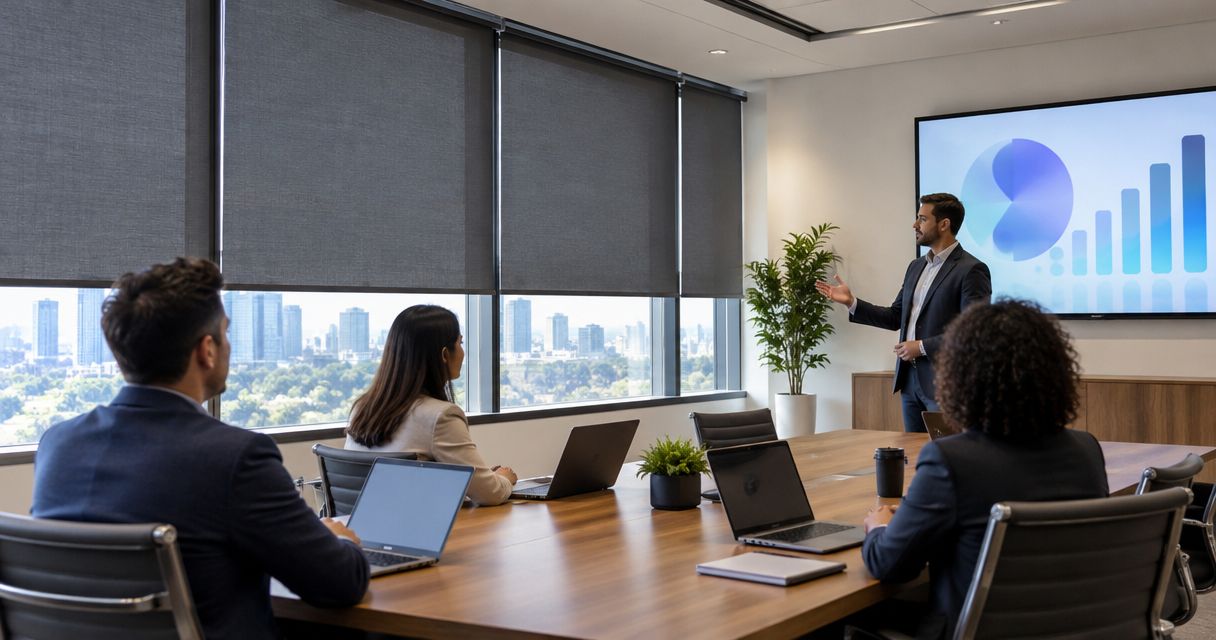
Instead of lowering every shade by hand before a presentation, connect a room-start command to a tested shade position so the windows are covered before you share your screen. Motorized shades conference room automation requires compatible controls, a clear trigger, and a manual override—not just motorized shades.
- Motorized shades conference room automation needs a supported connection between the room controls and shade controls.
- Use a presentation-start command for changing meeting times; use a schedule only for predictable room use.
- Test shade travel and screen visibility before choosing when the automation starts.
- Olsson Smart Shades provides custom-measured motorized shades for Columbus and Central Ohio homeowners; confirm conference-room project scope before booking.
Why this matters
A motor moves a shade. It does not, by itself, know that someone is about to present. The room needs a supported way to turn a presentation command, booking event, or scheduled time into a shade command.
The practical goal is simple: make the screen readable without leaving everyone sitting in unnecessary darkness. For a 2026 room project, decide how the space should behave before choosing equipment.
Olsson Smart Shades is best for Columbus and Central Ohio homeowners seeking custom-measured, professionally installed motorized shades. For a conference-room inquiry, confirm the commercial scope and who will handle the room-control connection. The commercial window treatments guide provides related planning guidance.
Before you start
- Confirm equipment and permissions. Record the shade motor, shade controller, room controller, and any required bridge. Have the relevant administrator approve access to shared room controls and calendars. Ask the installer or integrator to confirm the exact supported connection before ordering.
- Gather room details. Bring window measurements, screen location, typical meeting times, and photographs of glare. For a 2026 installation brief, include power access and who will maintain the controls. Leave final custom measurements to the installer.
- Check the hidden gotcha: what actually starts the workflow. A calendar booking is not proof that a presentation has started. A screen-sharing application also does not automatically expose a usable shade-control trigger. Confirm the event your installed system can actually provide.
This is a configuration plan, not a button-by-button guide for an unidentified controller. Menu names and supported events differ. The bold names below are names you can assign to your own scenes and routines, not claims about built-in interface labels.
Presentation trigger
Choose the event that best matches how people use the room. A deliberate presentation-start command is the recommended starting point when meeting times change. It connects shade movement to a person's decision rather than an assumption about a booking.
| Trigger option | Best for | Advantage | Limitation |
|---|---|---|---|
| Presentation-start command | Meetings with changing start times | Starts the room sequence when the presenter requests it | Someone must issue the command |
| Calendar event | Rooms with well-maintained bookings | Can prepare the room before attendees arrive | Canceled or unused bookings need handling |
| Fixed schedule | Predictable recurring room use | Avoids dependence on calendar access | Does not follow meeting changes |
Configure the start event
- Identify a supported start event in the installed room-control system. If no suitable event exists, stop here and ask the integrator about a supported connection.
- Create a room-specific routine named Presentation start. Avoid a whole-building group that includes unrelated windows.
- Select only the shades that affect the presentation area. Give each shade a location name that a colleague can recognize.
- Set the routine to run only from the intended event. Disable duplicate start rules while testing.
- Keep the existing local shade control accessible. Check that room users know where it is.
Expected result: issuing the selected start command activates only the intended room routine. At this stage, verify the trigger without adding lighting, screen movement, or unrelated equipment.
A single-purpose test makes mistakes easier to find. If an unexpected window responds, correct the room grouping before proceeding.
Shade position and timing
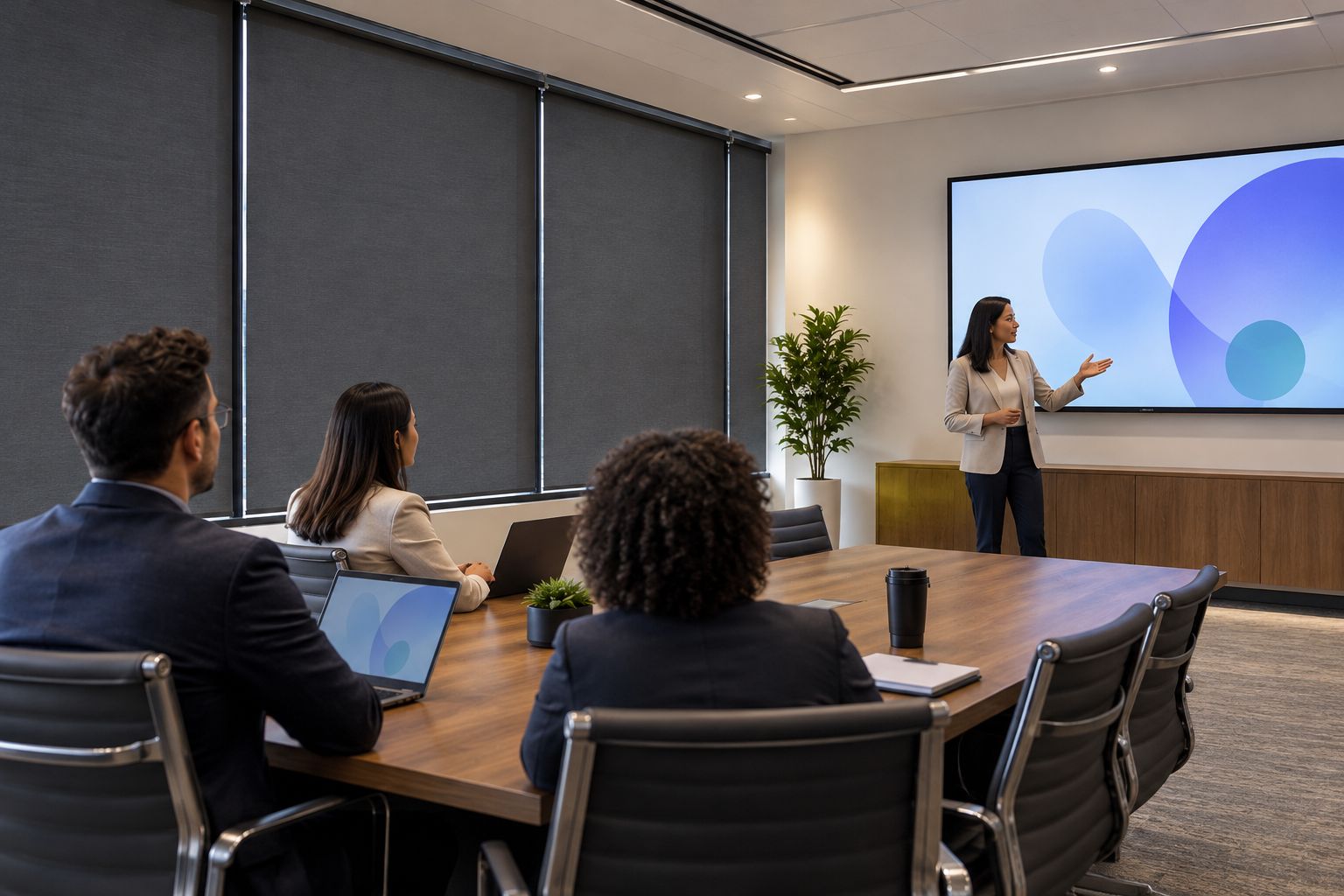
The right presentation position depends on the windows, fabric, mounting, screen, and daylight. Closing the shades fully is a useful test condition, but it is not automatically the best everyday setting.
Check the screen from the seats people actually use. Then check faces, walking routes, and any remaining glare at the window edges.
Configure the presentation position
- Move the selected shades using their normal controls. Check for obstructions and confirm that each shade travels correctly before adding automation.
- Find a position that controls glare while keeping the room usable. Save it as Presentation position if the installed controls support stored positions.
- If stored intermediate positions are unsupported, use a supported endpoint command instead. Do not assume a percentage setting exists or has the same meaning across systems.
- Measure the actual travel time from the normal daytime position to the presentation position. Use that observation to set the preparation interval.
- Check the sequence under bright daylight as well as the conditions present during setup. Record the approved position in the 2026 room instructions.
Expected result: each selected shade reaches the intended position, the screen is readable, and occupants can still use the room comfortably.
The benefit of motorized shades is repeatable movement without visiting every window. The limitation is equally important: automation cannot correct fabric that admits too much light or gaps that leave troublesome glare. Resolve the physical light-control problem before refining the routine.
Room sequence and handoff
Connect the verified trigger to the verified shade position. Keep the initial sequence short enough that a room user can explain what it does.
Configure the room sequence
- Add Presentation position as the shade action within Presentation start. Use an explicit destination rather than a toggle that reverses the current state.
- Where the controller supports completion feedback, check the shade state before continuing. Otherwise, use the measured travel time to establish a tested preparation interval; a delay alone does not prove completion.
- Add other room actions only after the shade command works. Confirm separately whether the installed equipment supports lighting or screen control.
- Create a separate routine named Room reset for the agreed post-presentation shade position. Do not make every meeting ending automatically reopen the shades without considering occupants.
- Run 3 complete test cycles: start from the normal position, start with shades already lowered, and start after someone changes a shade manually.
Expected result: the start command sends shades to the same intended position from different starting states. The reset command remains separate and understandable.
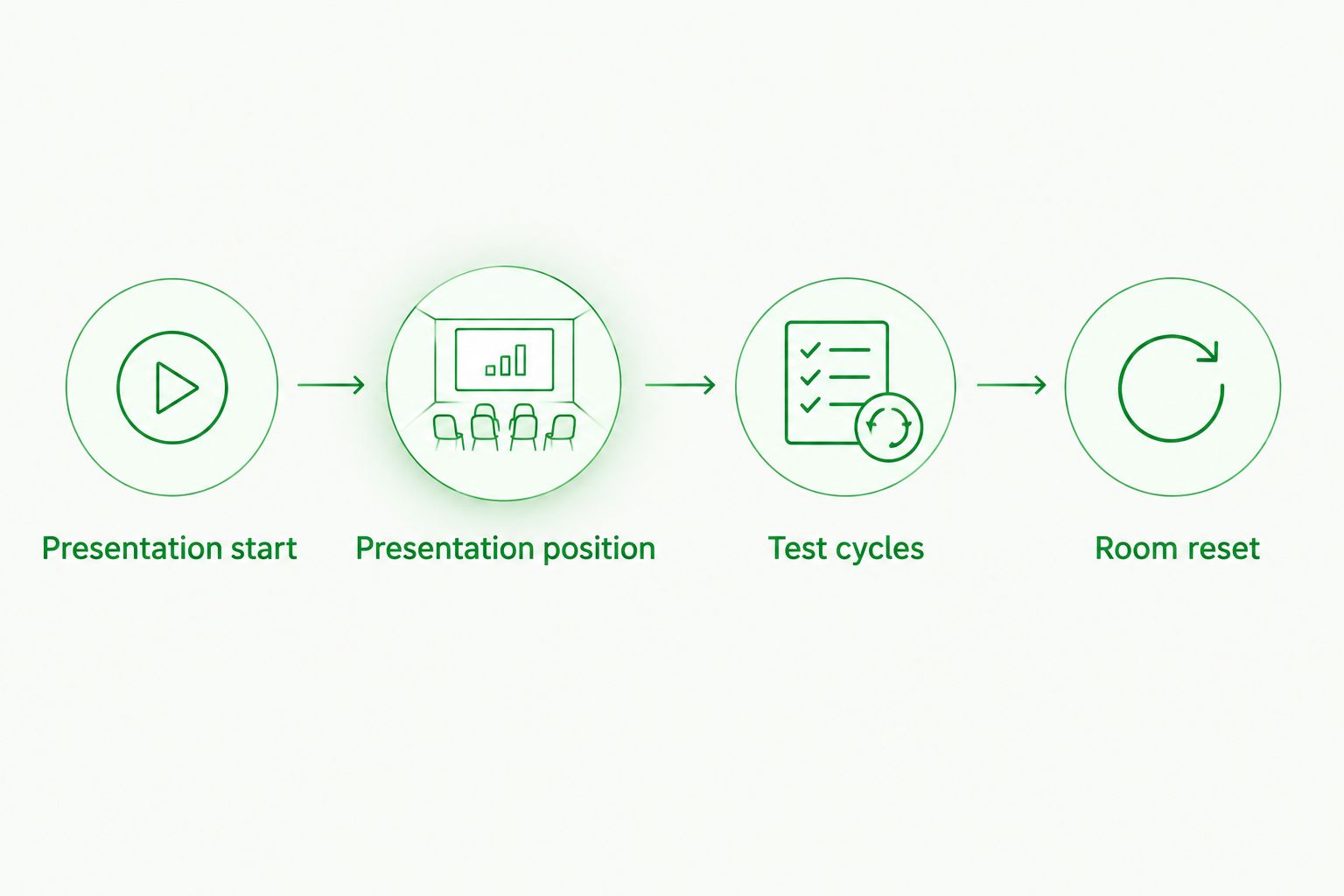
Finish the handoff with a short instruction beside the room controls. Explain how to start, how to stop shade movement using the installed controls, and who to contact when something fails. Include the date of the last successful 2026 test so future changes have a clear reference point.
Second workflow: prepare shades before a booked meeting
Calendar-based preparation suits rooms with reliable booking practices. Its advantage is earlier preparation without a presenter pressing a control. Its drawback is that a reservation does not confirm attendance or presentation use.
Use this variant only when your room-control system supports the calendar connection and your organization approves the required permissions.
- Connect the specific room calendar through the supported integration. Avoid granting access to unrelated personal calendars.
- Limit the routine to events intended to use presentation mode, using whatever filtering the integration actually supports.
- Set the preparation interval from the measured shade travel time and the room's agreed setup needs.
- Check how the integration handles changed start times, canceled events, recurring bookings, and time-zone settings.
- Preserve the manual Presentation start command for unscheduled meetings. Keep Room reset available for occupied rooms after a booking ends.
Expected result: an eligible booking prepares the correct room, while changed or canceled bookings behave as agreed during testing.
For 2026 calendar rules, test 2 booking cases before enabling unattended operation: a normal reservation and a canceled reservation. If cancellation handling does not meet the room's needs, choose the presentation-start command instead.
Do not add automatic reopening merely because the calendar event ends. A meeting can run late, and the next occupants might need the same shade position.
Troubleshooting
The shades move after the presentation is already visible
The trigger arrives too late, or the sequence does not allow for shade travel. Move the shade action earlier in the preparation sequence and retest using the measured movement time. Do not substitute an arbitrary delay for an observed result.
Only some shades respond
First test each shade with its normal local control. If one still fails, investigate power, pairing, or a physical obstruction before changing the automation. If all respond individually, inspect the room group and the devices selected in the routine.
The shades move twice or reverse unexpectedly
Check for overlapping schedules, calendar rules, and start routines. Disable competing rules and test one trigger at a time. Replace a toggle action with an explicit position or endpoint where the controls support it.
The screen still has glare with shades lowered
Look for light passing through the fabric, around the edges, or from another uncovered window. Adjusting the automation will not fix a physical light path. Review the shade material, coverage, and screen placement with the appropriate installer.
The room changes after someone adjusts a shade
A later scheduled action can overwrite a person's adjustment. Document which routines remain active during presentation mode, then remove unnecessary competing actions. If the controller offers a documented override or suspension feature, test it before relying on it.
Customize your workflow
Once the basic start-and-reset sequence works, expand according to actual room use. A discussion meeting might need daylight; a projected presentation might need more coverage. Save separate positions only when the installed controls support them and people can tell them apart.
Assign 1 room owner to maintain the instructions and coordinate changes. That person should record controller changes, check the routine after equipment updates, and keep local controls accessible. A small, documented workflow is easier to maintain than overlapping automations nobody owns.
For an Olsson Smart Shades inquiry, describe the windows, light-control problem, and whether this is a home presentation space or a commercial conference room. Ask which parts of the shade installation are included and who will confirm the control connection. You can request a quote without assuming a particular integration is supported.
Discuss your shade project
Describe your windows, presentation needs, and existing controls. Confirm project scope before choosing equipment.
FAQ
How do I automatically lower shades before a conference presentation?
Connect a supported presentation-start event to an explicit shade position, then test the timing before using it in meetings. The shade controls and room controls need a verified connection; motorization alone does not provide that connection.
Can a calendar booking automatically close conference-room shades?
Yes, when the installed control system supports an approved calendar integration. Test changed and canceled bookings, and keep a manual start command for unscheduled presentations.
Do I need a smart hub for motorized shades conference room automation?
The required controller or bridge depends on the exact shade and room-control equipment. Confirm the supported connection with the installer or integrator before ordering; there is no universal hub requirement.
Should conference-room shades close all the way for presentations?
Use the position that controls glare while keeping the room usable. Full closure is a useful test, but fabric, edge gaps, daylight, and screen placement determine the result.
Can people still adjust the shades manually?
Keep an accessible local control as part of the room plan. Test how later automated commands interact with a person's adjustment, and document any supported override procedure.
Will motorized shades make a conference room completely dark?
Motorization controls movement, not blackout performance. Fabric and installation details determine how much light remains, so inspect the actual room before promising darkness.
Does Olsson Smart Shades handle conference-room control integration?
Confirm conference-room installation and integration scope directly with Olsson Smart Shades. The business provides custom-measured, professionally installed window treatments for homeowners in Columbus and Central Ohio; commercial control integration needs separate confirmation.
One last thing
Test the start command with the shades already lowered. An explicit destination should leave them at the intended presentation position; a toggle can send them the wrong way. This simple check exposes a control mistake before a room full of people sees it.